Jobber Integration

Connect your Voka AI assistant to Jobber for seamless job scheduling, client management, and real-time availability for your field service business.
What is Jobber?
Jobber is a comprehensive field service management platform designed for home service professionals:
- 🔧 HVAC - Heating, ventilation, air conditioning services
- 🚰 Plumbing - Residential and commercial plumbing
- ⚡ Electrical - Electrical repairs and installations
- 🏡 Home Services - General contracting, handyman, cleaning
- 🌿 Landscaping - Lawn care, yard maintenance, snow removal
- 💧 Pool Service - Pool cleaning, maintenance, repairs
Already using Jobber for scheduling, invoicing, and client management? Your AI assistant can now book jobs automatically!
What Your Assistant Can Do
When connected to Jobber, your AI assistant can:
✅ Job Scheduling
- Create new jobs and service requests
- Schedule appointments with your technicians
- Check technician availability
- Assign jobs to specific team members
- Set job priority and urgency
✅ Client Management
- Look up existing clients
- Create new client records
- Update client information
- Access service history
- View client properties
✅ Service Coordination
- Quote common services
- Provide estimated arrival windows
- Schedule emergency calls
- Book recurring maintenance
- Coordinate multi-visit jobs
✅ Real-Time Availability
- Check technician schedules
- Respect business hours
- Account for travel time
- Block out unavailable times
- Optimize routing
✅ Job Information
- List available services
- Provide service descriptions
- Share typical duration
- Quote pricing ranges
How It Works
During a Call
Customer: "My furnace isn't working. Can someone come today?"
Assistant:
- Identifies this as an urgent HVAC service request
- Queries Jobber for technician availability today
- Finds earliest available slot
- Creates job in Jobber with customer info
- Assigns to available technician
- Confirms appointment time with customer
Result: Job appears in Jobber dashboard and technician's schedule immediately!
The integration uses Jobber's official API to communicate securely with your account. Jobs, clients, and schedules stay synced in real-time.
Setup Guide
Video ID: VIDEO-JOBBER-001 Title: Connecting Jobber to Voka AI Duration: 6-7 minutes Description: Complete walkthrough of Jobber integration setup Status: 🔴 Not recorded yet
Prerequisites
Before you begin, make sure you have:
- ✅ Active Voka AI account
- ✅ Active Jobber account (Core or higher plan)
- ✅ Services configured in Jobber
- ✅ Team members set up in Jobber
- ✅ Business hours configured in Jobber
Jobber API access is available on Core, Connect, and Grow plans. Check your Jobber subscription to ensure API access is included.
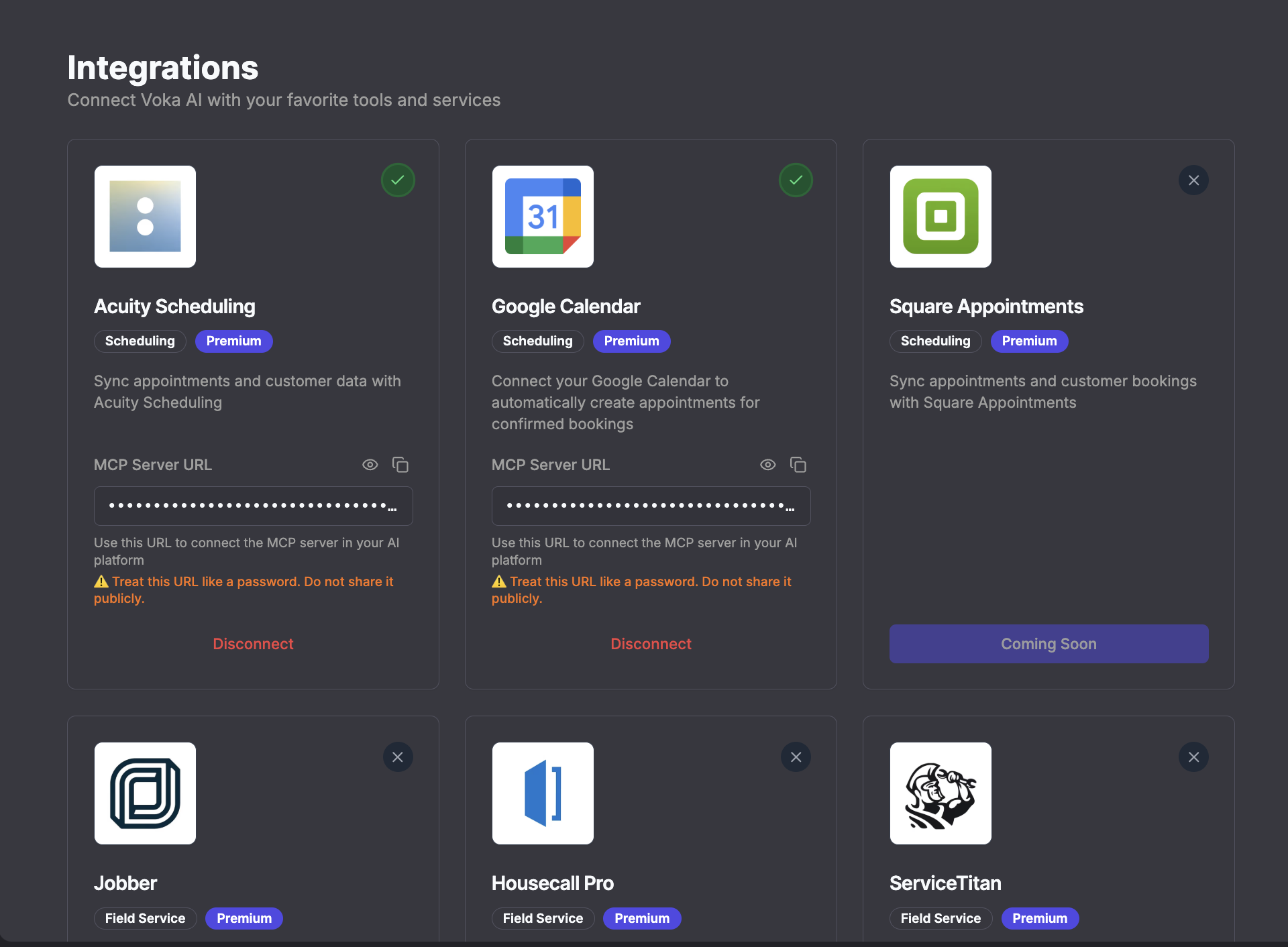
Step 1: Connect Jobber Account
- Log in to your Voka AI Dashboard
- Navigate to Integrations from the left sidebar
- Find Jobber in the list
- Click "Connect to Jobber"
Step 2: Authorize Access
- You'll be redirected to Jobber's authorization page
- Log in with your Jobber account credentials
- Review the permissions requested:
- Read and create jobs
- Read and create clients
- Read team member schedules
- Read service listings
- Read and update job details
- Click "Authorize App"
Screenshot ID: JOBBER-002
Filename: JOBBER-002_jobber-authorization.png
Description: Jobber's OAuth authorization screen showing Voka AI permissions request
Status: 🔴 Not started
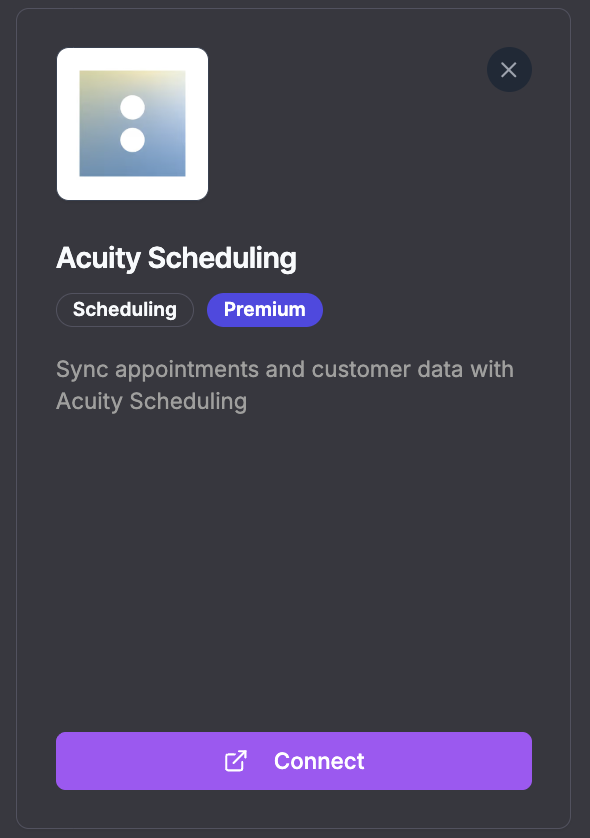
Step 3: Confirm Connection
- You'll be redirected back to Voka AI
- You should see a green checkmark next to Jobber
- Status should show "Connected"
- Your Jobber company name should appear
Step 4: Enable for Your Assistant
- Go to AI Assistants in the dashboard
- Select the assistant you want to enable Jobber for
- Click the Agent Tab
- Scroll to the Integrations section
- Toggle ON the switch for Jobber
- Click "Save Assistant"
Screenshot ID: JOBBER-004
Filename: JOBBER-004_enable-toggle.png
Description: Agent tab showing Jobber integration toggle switched to ON
Status: 🔴 Not started
Step 5: Configure Instructions
Update your assistant's instructions to utilize Jobber:
You are a scheduling assistant for [Company Name]. You have access to our Jobber system for job scheduling.

When customers call for service:
1. Ask what service they need
2. Determine urgency (emergency vs. routine)
3. Get property address
4. Check Jobber for technician availability
5. Offer available time slots
6. Create the job when they confirm
7. Confirm the appointment details

Common services we offer:
- [Service 1] - Typical duration: [X hours]
- [Service 2] - Typical duration: [X hours]
- [Service 3] - Typical duration: [X hours]

For emergencies (no heat, water leaks, electrical hazards):
- Prioritize same-day or next available
- Create high-priority jobs
- Inform customer of emergency rates if applicable

Always confirm the service address and best contact number.
Use the "Jobber Dispatch Coordinator" template when creating your assistant for pre-configured Jobber integration instructions!
Step 6: Test the Integration
- Call your assistant's phone number
- Request a service appointment
- Go through the booking process
- Check your Jobber dashboard
- Verify the job appears correctly with all details
See Testing Guide for comprehensive testing instructions.
Use Cases
Emergency Service Calls
Scenario: Customer has no heat in winter
Assistant capabilities:
- Recognize urgency from keywords ("emergency", "no heat", "not working")
- Check for immediate availability
- Create high-priority job in Jobber
- Dispatch nearest available technician
- Provide ETA to customer
Jobber sync:
- Job marked as urgent/high priority
- Technician receives mobile notification
- Customer details and notes included
- Address added to route for the day
Routine Maintenance Booking
Scenario: Customer wants seasonal AC checkup
Assistant capabilities:
- Identify as routine maintenance
- Offer flexible scheduling options
- Create job with appropriate service type
- Schedule during normal business hours
- Assign to preferred technician if requested
Jobber sync:
- Job created with correct service category
- Scheduled in technician's calendar
- Client record updated
- Service history tracked
Recurring Service Setup
Scenario: Customer needs monthly pool service
Assistant capabilities:
- Discuss recurring schedule preferences
- Create initial job
- Note recurring service request
- Confirm schedule with customer
Jobber sync:
- First job created with recurring notes
- Customer tagged for recurring service
- Follow-up jobs can be created in Jobber
- Service history builds over time
Configuration Options
Service Type Mapping
Map common customer requests to your Jobber service types:
- In Agent Tab → Integrations → Jobber Settings
- Click "Configure Service Mapping"
- Map phrases to Jobber service types:
- "Furnace repair" → HVAC Service
- "Clogged drain" → Plumbing Service
- "No power" → Electrical Service
This helps the assistant create jobs with correct service categories.
Priority Rules
Configure automatic priority assignment:
High Priority (Emergency):
- No heat/AC in extreme weather
- Water leaks
- Electrical hazards
- Gas leaks
Medium Priority:
- Equipment not working (non-emergency)
- Scheduled repairs
- Follow-up visits
Low Priority:
- Routine maintenance
- Estimates
- Non-urgent requests
Configure in Jobber Settings → Priority Rules
Technician Assignment
Control how jobs are assigned to technicians:
Option 1: Auto-Assign (Next Available)
- System finds first available technician
- Best for emergency calls
- Optimizes for speed
Option 2: Customer Preference
- Customer can request specific technician
- Assistant checks that person's availability
- Falls back to alternatives if unavailable
Option 3: Service Type Based
- HVAC jobs → HVAC-certified techs
- Plumbing jobs → Licensed plumbers
- Electrical → Licensed electricians
Configure in Agent Tab → Integrations → Jobber Settings → Assignment Rules
Best Practices
1. Keep Jobber Data Current
Your assistant depends on accurate Jobber data!
✅ Do this:
- Update technician schedules daily
- Mark time off and vacations
- Keep service pricing current
- Update business hours for holidays
- Maintain accurate client addresses
❌ Avoid:
- Manually managing schedules outside Jobber
- Outdated service listings
- Incorrect technician availability
2. Set Realistic Time Windows
Configure appropriate job durations in Jobber:
- Include travel time
- Add buffer for unexpected issues
- Account for part procurement
- Consider traffic patterns in your area
Your assistant will use these durations when scheduling.
3. Handle Address Collection
Train your assistant to collect complete addresses:
When creating a job, always get:
- Street address (number and name)
- City
- State/Province
- ZIP/Postal code
- Any special access instructions (gate codes, etc.)

Confirm the address by repeating it back to the customer.
4. Capture Job Details
Enable your assistant to gather important information:
For each service call, ask:
- What equipment/system is affected? (make/model if known)
- When did the issue start?
- Any relevant symptoms or error codes?
- Is this an emergency or can it wait?
- Best contact number for day of service

Add all details as notes to the Jobber job.
5. Manage Customer Expectations
Set clear expectations during calls:
Always communicate:
- Estimated arrival time window (not exact time)
- That technician will call before arriving
- If there's a service call fee
- That final pricing depends on diagnosis
- How they'll receive invoice after completion
Troubleshooting
"Jobber integration not working"
Check these:
- ✅ Integration shows "Connected" (green checkmark)
- ✅ Integration is toggled ON for this assistant
- ✅ Jobber account is active and has API access
- ✅ Services are configured in Jobber
- ✅ Team members are set up in Jobber
Still not working?
- Disconnect and reconnect the integration
- Verify your Jobber plan includes API access
- Check Jobber's system status
- Contact support with call transcript
"Jobs not appearing in Jobber"
Possible causes:
-
Service type not recognized
- Check service mapping configuration
- Ensure service exists in Jobber
- Verify service is active
-
Technician unavailable
- Check technician schedules in Jobber
- Verify business hours are set
- Ensure technician account is active
-
Address incomplete
- Assistant needs full address to create job
- Check call transcript for address capture
- Ensure address format is correct
Debug:
- Review call transcript for errors
- Try creating job manually in Jobber
- Check Jobber API logs (if available)
"Client data not syncing"
Jobber client matching:
- Matches by phone number first
- Then by email address
- Then by name and address
To ensure proper matching:
- Capture phone number accurately
- Ask for email for new clients
- Confirm name spelling
- Get complete address
Duplicate prevention:
- Jobber may create duplicate if contact info doesn't match
- Clean up duplicates in Jobber dashboard
- Update client records with accurate info
"Integration disconnected"
Why this happens:
- Jobber authorization token expired
- Jobber account password changed
- Permissions revoked in Jobber settings
- Jobber account downgraded (lost API access)
How to fix:
- Go to Integrations page
- Click "Reconnect" next to Jobber
- Re-authorize access
- Integration will resume working
Pricing & Limits
Voka AI Side
- ✅ Jobber integration included in Professional plan and higher
- ✅ No per-job fees from Voka AI
- ✅ No API call limits from Voka AI
Jobber Side
- Requires Jobber Core, Connect, or Grow plan (API access needed)
- Jobber may have API rate limits (generous for typical use)
- Standard Jobber subscription pricing applies
See Voka AI Pricing for plan details.
Security & Privacy
Data Security
- ✅ OAuth 2.0 secure authorization
- ✅ Encrypted API connections (HTTPS/TLS)
- ✅ No passwords stored by Voka AI
- ✅ Tokens encrypted at rest
Data Access
What Voka AI can access:
- Job data (to create and schedule)
- Client information (name, phone, email, address)
- Service listings
- Technician schedules
- Business hours
What Voka AI CANNOT access:
- Financial data or banking information
- Payment details
- Invoices (unless specifically enabled)
- Internal team notes (marked private)
Disconnecting
- Disconnect anytime in Integrations page
- Revokes all access immediately
- Previously created jobs remain in Jobber
- No data is deleted from either system
Advanced: Service Area Management
Configuring Service Areas
If you serve specific geographic areas:
- In Jobber Settings → Service Areas
- Define your coverage zones
- Assistant can inform customers if they're outside service area
- Alternative: Offer to add to waitlist for area expansion
Instructions example:
Our service areas include: [List cities/regions]

If customer is outside service area:
- Politely inform them we don't currently service that area
- Offer to take their information for future expansion
- Suggest they call back if they have property in our service area
API Details (For Developers)
The Jobber integration uses:
- Jobber API v2
- OAuth 2.0 for authorization
- RESTful API endpoints
- Webhook support (coming soon)
Permissions requested:
jobs:readjobs:writeclients:readclients:writeusers:read(for technician schedules)
Rate limits: Jobber's standard API limits (sufficient for most businesses)
For custom integration needs, see Custom MCP Servers.
What's Next?
Now that Jobber is connected:
- Test thoroughly - Create test jobs
- Train your team - Show them the workflow
- Go live - Start booking jobs automatically!
- Monitor analytics - Track job booking success
Need Help?
- 💬 Questions? Contact Support
- 🐛 Issues? Troubleshooting Integrations
- 🔧 Jobber help? Jobber Support
Frequently Asked Questions
Does this work with Jobber's mobile app?
Yes! Jobs created by your AI assistant appear in the Jobber mobile app immediately. Technicians can view and manage these jobs just like any other.
Can the assistant provide quotes over the phone?
The assistant can provide price ranges for common services based on your instructions. However, final quotes should still be given after technician assessment on-site.
What about after-hours emergency calls?
Configure your assistant to:
- Recognize after-hours emergencies
- Create urgent jobs in Jobber
- Notify on-call technician (via Jobber's dispatch)
- Inform customer of emergency rates
Can multiple assistants use the same Jobber account?
Yes! You can create multiple assistants (e.g., one for each service type) all connected to the same Jobber account. Jobs will all appear in the same Jobber dashboard.
Does it sync completed jobs and invoices?
The integration currently focuses on job creation and scheduling. Jobber remains your source of truth for job completion, invoicing, and payment tracking.
Can customers reschedule or cancel through the assistant?
Currently, the integration supports creating new jobs. Rescheduling and cancellation features are planned for a future update. For now, customers can call to request changes, and your assistant can take messages for rescheduling.
Connected to Jobber? 🎉 Your assistant is now your 24/7 dispatch coordinator! Start taking service calls automatically.