Purchasing Phone Numbers
Your AI assistant needs a phone number so customers can call in. This guide will walk you through purchasing your first phone number step-by-step.
Why You Need a Phone Number
Before your AI assistant can answer calls, you need to purchase a dedicated phone number. This number will be:
- Dedicated to your business - Only your AI assistant uses this number
- Available 24/7 - Customers can call anytime
- Your choice of type - Local or toll-free in the US and Canada; local, toll-free, national or mobile in the UK
- Flexible - Your plan includes 1 to 3 numbers, and you can add more for $2/month each
Step-by-Step: Buying Your First Number
Video ID: VIDEO-PHONE-001 Title: Purchasing Your First Phone Number Duration: 3-4 minutes Description: Step-by-step guide to searching for and purchasing a phone number Status: 🔴 Not recorded yet
Step 1: Navigate to Phone Numbers
- Log in to your Voka AI dashboard at voice.vokaai.com
- Click Phone Numbers in the left sidebar
- You'll see a list of your phone numbers (empty if this is your first time)
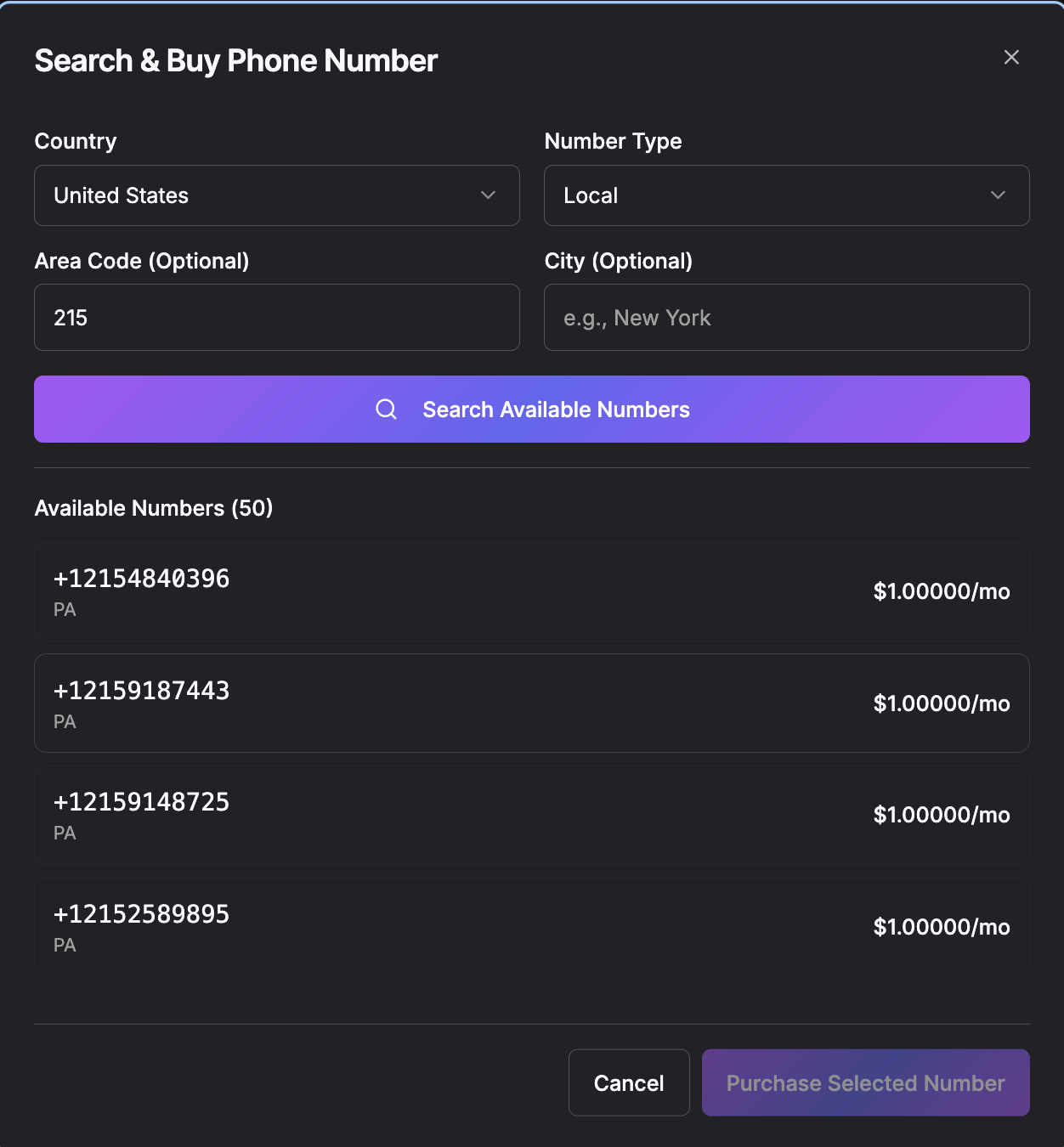
Step 2: Start the Purchase Process
- Click the "Buy Phone Number" button at the top of the page
- A search window will appear

Step 3: Choose Your Number Preferences
You'll see several options to help find the perfect number:
Country and Number Type
Pick the country, then the number type you need:
| Country | Number types you can buy |
|---|---|
| United States | Local, Toll-Free |
| Canada | Local, Toll-Free |
| United Kingdom | Local, Toll-Free, National, Mobile |
Local is the default: a regular area code (like 212 or 415) that feels familiar to your callers. Choose Toll-Free if you want an 800-style number callers can dial at no charge.
If you add the SMS add-on, texts are sent from a separate, verified toll-free texting number that Voka sets up for you. You don't need to buy it here, and the voice number you buy here isn't used for texting. See SMS Setup.
Area Code (Optional)
You can specify an area code:
- Enter your preferred area code (e.g.,
212for New York City,415for San Francisco), or a toll-free prefix like833when searching toll-free numbers - Leave blank to see numbers from any area code
City (Optional)
Narrow your search to a specific city:
- Enter the city name (e.g., "New York", "Los Angeles")
- This helps find numbers in your exact location
Step 4: Search for Available Numbers
- Click the "Search" button
- Voka AI will search for up to 20 available phone numbers matching your criteria
- Results appear right away
Step 5: Review Available Numbers
You'll see a list of available phone numbers. Each listing shows:
- Phone Number - The actual number (e.g., +1 555-123-4567)
- Region - Where the number is registered
- Monthly Cost - How much this number costs per month
Screenshot ID: PHONE-003
Filename: PHONE-003_available-numbers-list.png
Description: Search results showing 10-20 available phone numbers with region and cost
Status: 🔴 Not started
Look for numbers that are easy to remember or have a pattern (like repeating digits). This makes it easier for customers to remember and dial.
Step 6: Purchase Your Number
- Review the number you want
- Check the monthly cost
- Click "Purchase Selected Number"
- Confirm your purchase
Step 7: Confirmation
You'll see a success message confirming your purchase. Your new number will appear in your Phone Numbers list with:
- A green "Active" status badge
- The purchase date
- Monthly cost
- Number type
What Happens Next?
After purchasing your number:
- ✅ Your number is immediately active
- 🎯 Next step: Assign this number to an AI assistant
- 📞 Then: Test your assistant by calling your new number
A phone number alone won't answer calls. You must assign it to an AI assistant before it will work. See Creating an AI Assistant to get started.
Understanding Phone Number Costs
Your plan includes phone numbers: 1 on PAYG and Light, 2 on Flex and Value, 3 on Commit. Each extra number beyond that is $2/month.
On a free trial you get one phone number.
Call minutes are billed through your plan (included minutes, then a per-minute rate). Texting is billed through the SMS add-on.
See our Pricing Guide for complete details.
Managing Your Phone Numbers
View Your Numbers
All your purchased numbers appear in the Phone Numbers page, showing:
- Phone number
- Status (Active, Pending, Suspended)
- Type
- Country
- Monthly cost
- Tags (optional labels you can add)
- Purchase date
Sync Your Numbers
Click the "Sync Numbers" button to ensure your number assignments are up to date with the system.
Release a Number
If you no longer need a number:
- Find the number in your list
- Click the trash icon (🗑️)
- Confirm you want to release it
Releasing a number is permanent. The number will become available to other customers and you cannot get it back. Make sure you don't need it before releasing!
Purchasing Additional Numbers
Beyond the numbers your plan includes, extra numbers are $2/month each. Common scenarios:
- Different departments - Sales, support, and scheduling each get their own number
- Multiple locations - Each branch or office has a local number
- A/B testing - Test different assistants with separate numbers
- Backup numbers - Have extra numbers ready for peak seasons
Simply repeat the purchase process for each additional number.
Troubleshooting
"No numbers found in your search"
If your search returns no results:
-
Widen your search criteria
- Try a different area code
- Remove the city filter
-
Try a different region
- Some area codes have limited availability
- Consider a nearby area code
-
Contact support
- We can help find numbers that match your needs
- See Contact Support
"Purchase failed"
If your purchase fails:
- Check your payment method - Ensure your payment information is current
- Verify account limits - Some plans have number limits
- Try a different number - The number may have been claimed by someone else
- Contact support - We'll help resolve the issue
Next Steps
Now that you have a phone number:
- Create an AI Assistant - Build your virtual receptionist
- Assign the number - Connect your number to your assistant
- Test it out - Make sure everything works perfectly
Need Help?
- 💬 Questions? Contact Support
- 🔧 Technical issues? Check Troubleshooting