Square Appointments Integration
Connect your Voka AI assistant to Square Appointments so it can check your real availability and book appointments straight into your Square calendar while it's on the phone.
Watch the setup guide
Eight minutes, every screen: what to check in Square first, connecting Square, payment collection and call notes, naming tips, then real calls that book a named barber, take a deposit and book a couple together.
Prefer YouTube? Watch it there; the description has chapters to jump to each step.
What is Square Appointments?
Square Appointments is the booking and scheduling side of Square. It suits:
- 💇 Salons & Spas - Hair, nails, massage, beauty services
- 🛍️ Retail Services - Personal shopping, consultations
- 💼 Professional Services - Consulting, coaching, financial advising
- 🏋️ Fitness & Wellness - Personal training, therapy (see the note on classes below)
- 💆 Med spas & massage - Treatments and wellness services
Already using Square POS or payments? Square Appointments sits in the same account, so there's nothing new to sign up for.
What It Costs
Square Appointments is a premium integration — $19.99/month, added to your Voka AI subscription. It is not included in the base plans.
- No per-booking fees from Voka AI on top of that
- No limit on how many bookings your assistant makes
- You also need your own Square Appointments subscription, billed by Square
What Your Assistant Can Do
Once Square is connected and switched on for an assistant, it can:
✅ Check Real Availability
- Look up open times for a service on a given day, live, during the call
- Check with any available team member, or with one person the caller asks for by name
- Answer "when's your next opening?" by searching forward until it finds one
- Respect your business hours, staff schedules, blocked time and buffers as set in Square
✅ Book Appointments
- Book a new appointment while the caller is still on the line
- Chain several services into one appointment for the same person (for example a cut and a beard trim, back to back)
- Book a couples or small-group appointment — two or more people at the same start time, each with their own service and their own staff member
- Attach a note to the appointment as it books it
✅ Manage Appointments It Booked
- Find a caller's upcoming appointments
- Move an appointment to a new time
- Cancel an appointment
✅ Look After Customer Records
- Find an existing Square customer by phone number, or by email
- Create a new customer record when there isn't one
- Add an email address to a record that doesn't have one
- Recognise a returning caller before it speaks and greet them by name, and mention their last visit or an appointment already on the books
✅ Talk About Your Services
- Read out your services, how long they take and what they cost
- Name the staff who can do a given service
✅ Text a Deposit Link
- Text the caller a secure Square payment link after booking, so you're not holding a slot for free. See Deposit & No-Show Protection — this one is off until you turn it on.
What It Can't Do
Please read this section before you go live. These are real limits, not things waiting on a future release.
Square only lets outside apps create, move or cancel appointments for sellers on a paid Appointments plan: Appointments Plus or Premium. On Square's free Appointments plan, your assistant can still read your services, staff and openings and answer questions, but Square refuses the booking itself. The assistant tells the caller nothing is booked yet and that your team will be in touch to confirm.
Voka AI checks your plan when you connect and flags it in your portal if Square won't accept bookings. Check your plan in Square under Settings → Account & Billing → Pricing & Subscriptions.
With the permissions Voka AI holds today, Square returns only the bookings this app created. So your assistant can find, move and cancel appointments it booked over the phone — but it cannot see a booking made on your Square online booking site, taken at the counter, or made before you switched Voka AI on.
A regular who booked another way will be told there's nothing on file, and won't be able to cancel or move it by phone. Expect this to ease over your first few months as more of your bookings come in through the assistant. We are also working on lifting the limit itself. Until then, be ready to handle those calls yourself.
If a service in Square has a cancellation or no-show fee attached to it, Square blocks any booking that doesn't go through Square's own online booking flow.
Your assistant can't see that fee in advance — Square doesn't publish it — so it only finds out at the moment it tries to book. It will apologise and tell the caller to book that particular service online instead. If phone booking matters more to you than the fee on a given service, remove the fee in Square.
Other limits worth knowing:
- One location at a time. If you have more than one bookable Square location, the assistant will ask the caller which one they want before it checks times. It can't merge openings from two locations into one list.
- Cancelling cancels the whole appointment. If someone booked a cut and a colour together, the assistant can't drop just the colour — it's both or neither. The same goes for moving it.
- It can't change the service on a booking that already exists. Moving to a new time works, and a caller can now switch to a different team member as part of a reschedule — but swapping the service itself means cancelling and rebooking, which the assistant will offer to do.
- No repeat or standing appointments. It books one appointment at a time. It can't set up a weekly or monthly series. Book the first one by phone, then set the series up yourself in Square.
- No classes or group sessions with seats. Square Appointments has no concept of a class with a number of places, so there's nothing for the assistant to book into. This isn't on our list to build — it's a limit of Square itself. (A couples booking is different, and is supported — see above.)
- It won't read out a long menu. If you offer more than about eight services, it names a few, says how many there are in total, and asks what the caller is after. Same for a team of more than eight. This is deliberate — nobody sits through 74 services on the phone.
- It won't guess between similar service names. If a caller says "a cut" and you have three services with "cut" in the name, it reads the options back rather than picking one. That's safer, but it adds time to the call — so name your services in Square so they can be told apart out loud.
- It won't read out a list of past visits. It recognises a returning caller and can mention their last visit or their next appointment, but there's no "read me my history" — and it only knows about bookings it made itself (see the warning above). Recognition reaches back about three months, so a customer who last came in a year ago is treated as new.
- It can't edit a note after booking. A note can only be added at the moment it books.
- It never overwrites customer details. It will fill in a missing email address, but it won't change a name, phone number or email already in Square.
- No appointment reminders. Voka AI doesn't send reminders. If Square sends reminders for you, those carry on as normal.
When cancelling, the assistant does not promise "no fee" — it can't read your policy from Square, so it only states a cancellation policy if you've written one into its instructions. Otherwise it says the business will confirm any policy details. If you charge for late cancellations, put the policy in your assistant's instructions so it's quoted accurately.
How It Works
During a Call
Customer: "I'd like to book a haircut for tomorrow"
Assistant:
- Asks which service, if it isn't clear
- Asks Square, live, what's open for that service tomorrow
- Offers the caller the times that came back
- Books the appointment when the caller confirms
- Creates or finds the customer record in Square
- Confirms the details back to the caller
Result: the appointment is in your Square Appointments calendar within seconds.
Square lets you set booking approval to "Requires acceptance". If yours is set that way, your assistant does not tell the caller they're confirmed — it says the appointment has been requested and is pending your confirmation, and it does not offer alternative times. The request lands in Square for you to accept as normal.
If you'd rather callers be booked outright, switch your Square booking policy to automatic acceptance.
Your assistant reads Square during the call — Voka AI keeps no copy of your calendar and there is no overnight sync. Open times are read live, so a slot that filled a minute ago is already gone.
Your service list, staff and locations are held briefly to keep calls fast: services for about 4 hours, staff for about 20 minutes, locations for about a day. So a new service, a renamed one, or a price change can take up to a few hours to reach callers. Availability, business hours and blocked time are not affected — those are always read fresh.
Voka AI does not text or email a booking confirmation. Your customer gets whatever confirmation Square is set up to send. Check your notification settings in Square before you go live, so callers aren't left with nothing in writing.
The only text your assistant sends on a booking call is a payment link, and only if you've turned on Payment Collection.
Setup Guide
Before You Start
Make sure you have:
- ✅ An active Voka AI account
- ✅ The Square Appointments add-on ($19.99/month) on your Voka AI subscription
- ✅ An active Square Appointments account on Appointments Plus or Premium. On Square's free plan your assistant can answer questions but can't book. See What It Can't Do.
- ✅ Services set up in Square as bookable appointment services, each with at least one staff member assigned and "Bookable by Customers Online" ticked — a catalogue item that isn't a bookable service won't appear
- ✅ Staff set up in Square and marked as bookable
- ✅ Business hours set in Square
And check these two, because they'll stop you later:
- ⚠️ Any service with a cancellation or no-show fee in Square cannot be booked by phone at all. See What It Can't Do.
- ⚠️ If you want the assistant to collect deposits, you'll also need the SMS add-on and a verified toll-free texting number. See Deposit & No-Show Protection.
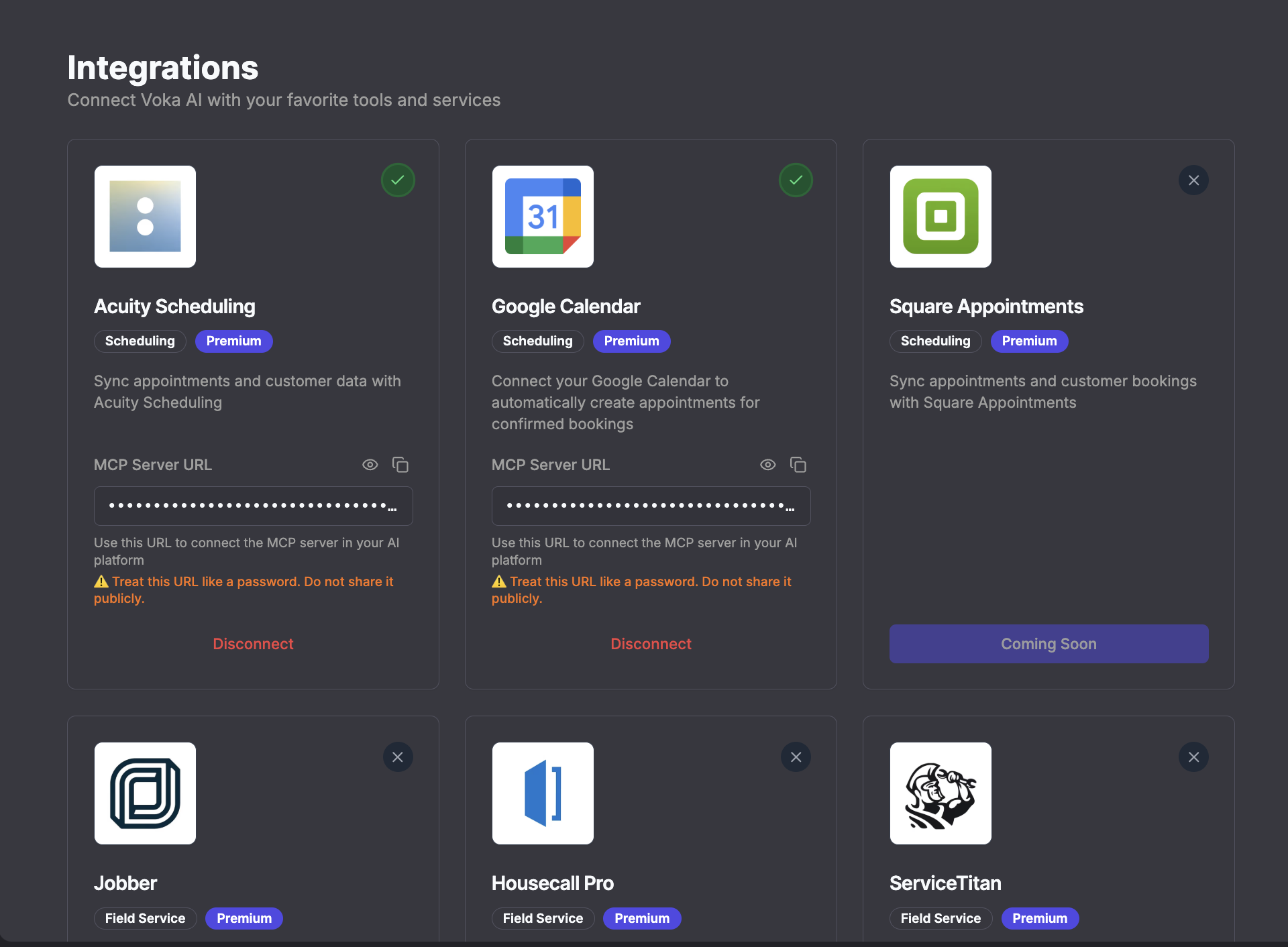
Step 1: Connect Square Account
- Log in to your Voka AI Dashboard
- Go to Integrations in the left sidebar
- Find Square Appointments
- Click "Connect to Square"
Step 2: Authorize Access
- You'll be sent to Square's own authorization page
- Log in with your Square account
- Review what Square says Voka AI is asking for. It generally covers:
- Reading and creating appointments
- Reading and creating customer records
- Reading your staff, schedules and business hours
- Reading your service menu and prices
- Reading your business profile
- Creating invoices, so a deposit link can be sent — only ever used if you turn Payment Collection on
- Click "Authorize" or "Allow Access"
We've extended these permissions over time, so the screen you see may list more or fewer than the summary above. Square's own screen is the authority — read that one, not this page. Nothing is used unless the matching feature is switched on.
Step 3: Confirm Connection
- You'll land back in Voka AI
- You should see a green checkmark next to Square Appointments
- Status should read "Connected"
- Your Square business name should appear
Step 4: Enable for Your Assistant
- Go to AI Assistants
- Select the assistant you want to use Square
- Open the Agent Tab
- Scroll to the Integrations section
- Find Square Appointments and click Enable
It saves on its own — the badge flips to Enabled and you'll see a confirmation. There's no separate save button for this (the Agent tab's own "Save Changes" button is for the other fields on that tab).
Step 5: Set the Instructions
The easiest route is to use the built-in "Square Appointments Manager" template when you create the assistant. It already contains booking instructions written for Square, and it's kept up to date as the integration changes.
It's tempting to paste your service menu, durations and prices into the assistant's instructions. Don't. The assistant reads all of that from Square live on every call, so a list in the instructions only goes stale — and a service name in the instructions that doesn't exactly match Square is one of the most common reasons a booking fails.
Keep the instructions about how you want the call to go, and let Square be the source of truth for what you sell.
If you're writing your own, this is a reasonable shape:
You are the scheduling assistant for [Business Name]. You can check availability
and book appointments in our Square Appointments system.

When someone wants to book:
1. Ask what service they need
2. Ask their preferred day and time
3. Check Square for availability
4. Offer the times that come back
5. Book it once they confirm
6. Read the details back to them

If nothing is open on the day they asked for:
- Offer the next available opening
- Ask whether a different day or a different service would work
- If neither works, take a message

If they ask for a staff member who isn't free:
- Check that person's next opening
- Offer other staff who are free sooner
- Let the customer choose

When booking, ask about anything you'd want written on the appointment —
first visit or returning, allergies or sensitivities, any special requests —
and include it as the appointment note.
Step 6: Test the Integration
- Call your assistant's number
- Book a real appointment
- Check it appears in your Square Appointments dashboard
- Then call back and try to cancel that same booking — this is the one to test, because it's the path with the biggest limit on it
See the Testing Guide for a fuller checklist.
Use Cases
Salon & Spa Booking
Scenario: a customer calls for a haircut
What your assistant does:
- "What service are you looking for today?"
- Checks availability for a specific stylist, or for anyone free
- "I've got tomorrow at 2, 3 or 4 with Sarah"
- Books it and reads the details back
- Texts a deposit link, if you've turned Payment Collection on
In Square:
- The appointment appears on the calendar
- The stylist sees it
- The customer record is created or matched
- The right service is attached
Worth knowing: Voka doesn't send a confirmation text of its own — Square's notifications do that, if you have them switched on.
Couples & Small Groups
Scenario: two people want to come in together
What your assistant does:
- Takes each person's name and service
- Checks whether enough staff are free at the same time
- Books everyone at the same start time, each with a different staff member
- If deposits are on, each person booked under their own phone number gets their own payment link
Worth knowing: this is all-or-nothing on purpose. If only two of a party of three can be seated at once, the assistant books nobody, tells the caller how many fit, and offers either a back-to-back arrangement or a different time. A one-chair shop can't take a couples booking at all.
Multi-Location
Scenario: a customer wants an appointment at a particular branch
What your assistant does:
- Asks which location they want, if you have more than one bookable location
- Checks that location's availability
- Books at that location, with staff from that location
Worth knowing: it checks one location at a time and won't combine openings across branches. Tell callers your location names the way they're spelled in Square.
Repeat Appointments
Scenario: a client wants a standing weekly slot
What your assistant does:
- Books the first appointment
- Takes a note that they'd like it to recur
Worth knowing: there's no recurring booking. Your assistant books one appointment at a time and can't create a series. Set the series up yourself in Square after the call, or ring the client back to book each one.
What You Configure Where
There is no separate Square settings panel in Voka AI. Almost everything about what can be booked lives in Square, and Voka AI only decides which assistants can reach it.
In Square
- Your services — which exist, how long they take, what they cost. Only items set up as bookable appointment services can be booked by phone.
- Which services can be booked by phone — untick "Bookable by Customers Online" in Square and your assistant stops reading that service out and stops booking it. Square itself refuses it, so a caller who asks for it by name is told you don't take bookings for that one, and is offered what you do. It doesn't touch appointments already in the diary: someone who has one booked still hears it named back, and can still move or cancel it.
- Your staff — who exists, who's bookable, who can do which service, and their hours.
- Your locations — which are bookable.
- Business hours, blocked time and buffers — your assistant honours all of these automatically.
- Confirmation and reminder messages — Square sends these, not Voka AI.
In Voka AI
- The on/off toggle per assistant — Agent Tab → Integrations. That's the whole control: this assistant can use Square, or it can't.
- Payment Collection — Integrations → Square → Manage. Covered below.
- Which services require payment — Integrations → Apps → Square → Manage → Payment collection.
Handled automatically, with nothing to set
- Which location — the caller names it during the call.
- Which staff member — if the caller asks for someone by name, the assistant checks that person's calendar. If they've no preference, it offers whatever's open and books whoever is attached to the time they pick. There's no setting for this, and no way to spread bookings evenly across your team.
Deposit & No-Show Protection
Cut down no-shows by having your assistant text a secure Square link for a deposit (or the full amount) when it books. The caller pays on Square's page; your assistant never takes a card number over the phone. This is off until you turn it on.
When a caller books a service you've marked as requiring payment, your assistant sends a real Square invoice to the caller's phone by text. They pay on Square's own secure hosted page. Voka AI and your assistant never see or touch card details, and the call never asks for a card number.
What Your Assistant Does
- Tells the caller, before booking, that this service needs a deposit (or payment in full) to hold the slot, and that a secure link is on its way
- Waits for them to agree before it books anything
- Books the appointment
- Texts the secure Square payment link straight after
Your assistant says the service requires a deposit, not what the deposit is. If the caller asks how much, it answers with the real figure. The exact amounts — deposit due now, balance due later — are on the link. It will never say the balance figure out loud.
A realistic version sounds like: "That one needs a deposit to hold the spot — I'll text you a secure link to pay it. Shall I go ahead and book you in?"
Enabling It
- Go to Integrations → Apps, find Square Appointments, and click Manage
- Find the Payment collection card
- Under "How should the assistant collect payment?", choose a mode:
- None — the default. The assistant books normally and never mentions payment.
- Deposit only — take part now; the balance is scheduled on the same invoice, due later
- Full payment only — the link is for the whole service cost
- Both (caller chooses) — the caller picks on the call
- Under Deposit amount, choose Percentage or Fixed amount and enter the figure
- Either tick Require payment for all services, or leave it clear and pick from Choose which services require payment
- Click Save payment settings. It takes effect on the very next call; you don't need to edit or resave your assistant.
Payment Collection requires all of the following:
- The SMS add-on on your account — the payment link is delivered by text
- A verified toll-free texting number on the assistant taking the call
- A deposit amount set, if you chose Deposit only or Both
- A Square location that can process card payments
- A Square connection made recently enough to include the invoice permissions — see the warning below
The first three, plus your service selection, are checked when you save, and Voka AI won't let you save without them. The card-payment capability and the age of your Square connection are only discovered on a live call.
If you connected Square before 30 July 2026, your connection predates the permissions Voka AI needs to create invoices. The setting will look available and will save — but on a real call your assistant will book the appointment and then tell the caller the business will follow up about payment. No link goes out, and no money is collected.
To fix it: go to Integrations → Square, disconnect, then connect again and approve the new permissions. Do this before you turn Payment Collection on, not after.
While you're in Square, also check that the location taking these bookings is set up to process card payments. If it isn't, your assistant will book the appointment and then tell the caller the business isn't set up to take cards yet.
The Caller Experience
Customer: "I'd like to book a haircut for tomorrow at 2pm"
Assistant:
- Confirms the slot
- Says the service needs a deposit to hold it, and that a secure link is coming — then asks whether to go ahead. If the caller asks how much, it tells them.
- Books the appointment in Square, once they've said yes
- Texts the secure Square payment link
- Confirms the booking and tells them to check their texts to finish paying
The customer pays on Square's own hosted page, in their own time, after the call ends.
What the Invoice Looks Like
This is a true deposit, not a placeholder charge. For a $250 service with a $50 deposit configured, the invoice shows:
- Full service total: $250
- Deposit due now: $50 (payable immediately via the texted link)
- Balance due: $200 (scheduled, due at the time of service)
Both amounts sit on the same Square invoice, so you and your customer see the whole picture — what's owed today and what's owed later.
What It Won't Do
- It won't tell you whether they paid. Voka AI creates the invoice and sends the link, then stops. Check payment status in Square, the same as any other invoice.
- It won't ask for payment on a reschedule. Moving an appointment doesn't create a new charge, and the assistant is specifically told not to raise deposits or send links when someone is only moving a booking.
- It won't chase an unpaid deposit. There's no follow-up text and no reminder.
- If the link can't be created, the appointment still stands. Your assistant will tell the caller they're booked and that the business will follow up about payment. It won't pretend a link was sent.
The invoice is shared by link (Square's SHARE_MANUALLY delivery) rather than emailed automatically by Square, because Voka AI texts it directly. Voka AI holds no permission to charge a card — all payment happens on Square's own hosted checkout, under Square's PCI compliance.
Acuity Scheduling has its own separate payment-collection setup. See the Acuity Scheduling guide for how it works there.
Best Practices
1. Keep Square Updated
Your assistant is only as good as your Square data. It reads Square continuously, so whatever's in there is what your callers hear — allow a few hours after a service or price change.
✅ Do this:
- Update business hours in Square when they change
- Mark staff unavailable when they're out
- Keep the service list current and the prices right
- Name services so they can be told apart out loud ("Men's Cut" and "Women's Cut", not two things both called "Cut")
❌ Avoid:
- Managing schedules anywhere other than Square
- Paper diaries or side calendars the assistant can't see
- Service descriptions that no longer match what you do
2. Configure Buffer Times
Set buffer time between appointments in Square for:
- Cleanup
- Preparation
- Running over
- Travel time (mobile services)
Your assistant honours these automatically.
3. Turn On Square's Notifications
Voka AI doesn't send booking confirmations or reminders. Square can. Switch them on in Square so your phone bookings get the same confirmation as your online ones.
4. Ask Your Assistant to Capture Notes
Tell your assistant what you'd want written on the appointment — first visit or returning, allergies or sensitivities, special requests — and it will add them as the appointment note when it books.
Remember it can only add a note at the time of booking. It can't go back and edit one later.
5. Plan for the Bookings It Can't See
For your first few months, expect calls from customers whose appointment the assistant can't find, because they booked another way. Decide in advance how you want those handled — take a message, forward to a person, or ask the caller to use your Square online booking page.
Troubleshooting
"It told my customer they don't have an appointment"
This is the most common one, and it's usually not a fault.
Your assistant can only see appointments it booked. A customer who booked on your Square site, in person, or before you switched Voka AI on will be told there's nothing on file — and won't be able to cancel or move it by phone either.
What to do:
- Handle those bookings yourself for now
- It gets better on its own as more of your bookings come through the assistant
- If the customer definitely booked by phone through the assistant and it still can't find them, it's a matching problem — see below
"It wouldn't book a service"
1. The service has a cancellation or no-show fee in Square. Square blocks it outright. Your assistant will tell the caller to book that one online instead. Remove the fee in Square if phone booking matters more.
2. "Bookable by Customers Online" is unticked for that service. Square refuses it, and your assistant tells the caller you don't take bookings for that one. Tick it in Square if you want it bookable by phone.
3. The service isn't set up as a bookable appointment service, or has no staff assigned to it. Check it in Square.
4. The service name is ambiguous. If several of your services share a word, the assistant reads the options back rather than guessing. That's working as intended — but renaming them in Square makes calls shorter.
5. The requested time genuinely isn't free. Check the same slot manually in Square.
Debug: open the call transcript and look at what the assistant said it was trying to book, then try the same booking by hand in Square.
"The deposit link never arrived"
Work down this list:
- Is Payment Collection actually on? Integrations → Square → Manage.
- Was your Square connection made before 30 July 2026? If so, disconnect and reconnect — this is the most common cause. Symptom: the caller is booked, then told the business will follow up about payment.
- Can the location take card payments in Square? Symptom: the caller is told the business isn't set up to take cards yet.
- Is the SMS add-on active, with a verified toll-free texting number on that assistant?
- Is a deposit amount set, if you're on Deposit only or Both?
In every one of these cases the appointment is still booked — only the payment link failed. Check the transcript to see which message the caller heard.
"It says it can't reach the booking system"
Voka AI renews your Square connection automatically in the background, so a working connection won't simply time out.
It does break if:
- Voka AI was removed from your authorised apps inside Square
- Permissions were changed or revoked in Square
- Square itself is having an outage — check status.squareup.com
How to fix: go to the Integrations page and reconnect Square, then re-authorise. Make a test call afterwards.
"The same customer keeps getting duplicated in Square"
Your assistant looks the caller up by phone number first, then by email. It never searches by name.
So if a regular's Square record has an old number on it, the assistant treats them as brand new and creates a second record.
It also happens the other way: if several Square contacts share one phone number and none of them matches the name the caller gives, the assistant won't guess which is which — it creates a new record rather than filing the appointment under the wrong person.
To reduce it:
- Keep phone numbers current in Square
- Have your assistant ask for an email when it creates a new customer
- Merge duplicates in the Square dashboard as you spot them
Your assistant will add a missing email to an existing record, but it will never overwrite a phone number, name or email that's already there — so it can't fix a wrong number for you.
Security & Privacy
Data Security
- ✅ OAuth 2.0 secure authorization
- ✅ Encrypted connections (HTTPS/TLS)
- ✅ No Square password is ever stored by Voka AI
- ✅ Access tokens encrypted at rest
Data Access
What Voka AI can access:
- Appointment data, to check availability and book
- Customer information (name, phone, email)
- Your service list and prices
- Staff schedules
- Business hours
- Your business profile
- Whether a customer has a card saved in Square (not the card itself, and not its number)
- Creating orders and invoices — only when Payment Collection is enabled, and only to raise the deposit or full-payment invoice
What Voka AI cannot do:
- See credit card numbers or any card details
- Charge or capture a payment — we hold no permission to take money from a card
- Touch your Square POS transactions
Even with Payment Collection on, the customer pays on Square's own hosted checkout. Voka AI only creates the invoice and texts the link.
Health information
Voka is not offered as a HIPAA-compliant service and does not sign Business Associate Agreements. Don't collect health information on calls; keep it in your own intake system.
Calls to your assistant are recorded and transcribed, so anything a caller says, including a reason for visit, ends up in that transcript, and the service they book is stored on the appointment in Square.
Disconnecting
- You can disconnect anytime on the Integrations → Apps page
- Disconnecting takes effect immediately — your assistant stops booking straight away and the stored access token is deleted
- Voka AI is not removed from your authorised apps inside Square. Remove it there too if you want the grant revoked on Square's side.
- Nothing is deleted from either system. Appointments already booked stay in Square, and your Payment Collection settings are remembered if you reconnect later.
Using Square With Several Assistants
You can point as many assistants as you like at one Square connection — each on its own phone number.
Setup:
- Connect Square once, on the Integrations page
- Create your assistants
- Toggle Square ON in the Agent Tab for each one
- Give each assistant its own phone number
What you can't do: lock an assistant to a single Square location. Every assistant sees every bookable location, and the caller names the one they want during the call.
If you want a number that only ever books one site, write that into that assistant's instructions — tell it to confirm the location with the caller and only book at that branch. That's a strong steer, but it isn't a hard restriction.
API Details (For Developers)
The Square integration uses:
- Square Bookings API v2
- OAuth 2.0 for authorization
- Webhooks: not currently enabled. Voka AI reads Square on demand during a call rather than receiving push updates.
Permissions requested (production, connections made from 30 July 2026):
APPOINTMENTS_READ/APPOINTMENTS_WRITE— read and create bookings this app ownsAPPOINTMENTS_ALL_READ/APPOINTMENTS_ALL_WRITE— read and modify bookings made by anyone, not just ones this app createdAPPOINTMENTS_BUSINESS_SETTINGS_READ— booking profile, business hoursCUSTOMERS_READ/CUSTOMERS_WRITEITEMS_READ— the service catalogue and pricesMERCHANT_PROFILE_READ— locations, timezone, currencyPAYMENTS_READ— used only to see whether a customer has a card on fileORDERS_READ/ORDERS_WRITE— the order behind a deposit or full-payment invoiceINVOICES_READ/INVOICES_WRITE— creating and sharing that invoice
Requested is not the same as used. These are granted as one set when you connect, regardless of which features you switch on. Voka AI only exercises the order and invoice permissions when you enable Payment Collection, and only exercises the wider booking permissions where a feature needs them — but the grant itself is not conditional. If you are not comfortable with a permission, do not connect the integration.
Voka AI never requests PAYMENTS_WRITE. Invoices are shared for the customer to pay through
Square's hosted checkout (delivery method SHARE_MANUALLY), never processed by Voka AI.
The exact set has changed over time, so a connection made today holds more than one made a year ago. Square's consent screen at the time of connection is the authoritative list.
Note on bookings visibility: with the permissions Voka AI holds, Square's ListBookings returns only the bookings created by this application. That is the source of the limit described in What It Can't Do.
Rate limits: Square's standard API limits apply, and are very high for typical use.
For custom integration needs, see Custom MCP Servers.
What's Next?
Now that Square is connected:
- Test thoroughly - make a real booking, then try to cancel it
- Go live - start taking real bookings
- Monitor analytics - track how many calls end in a booking
Need Help?
- 💬 Questions? Contact Support
- 🐛 Issues? Troubleshooting Integrations
- 🔧 Square help? Square Support
Frequently Asked Questions
Is Square included in my plan?
No. Square Appointments is a premium integration at $19.99/month on top of your Voka AI plan. You also need your own Square Appointments subscription from Square.
Can I use Square POS without Square Appointments?
No — this integration needs Square Appointments specifically. Square POS on its own has no appointment booking to connect to. The two work fine side by side in the same Square account.
Does this work with Square for Retail?
Yes. If you use Square Appointments for consultations, personal shopping or services, this works the same way.
Can customers book classes or group sessions?
No, and this isn't coming. Square Appointments has no concept of a class with a set number of places, so there is nothing for us to book into. It's a limit of Square, not something on our list. If you run classes, keep taking those the way you do now.
What we can do is a couples or small-group booking: two or more people at the same start time, each with their own service and their own staff member. You need one free staff member per person — a one-chair shop can't take a couples booking, and if only two of a party of three fit, the assistant books nobody and offers you the choice.
Can my assistant cancel or move an appointment that was booked online?
No. It can only see appointments it booked. See What It Can't Do — this is the single most important limit on this page.
What if I have custom fields in Square?
Your assistant doesn't read or fill in Square's custom booking fields. It captures a free-text note at the time of booking, and that note lands on the appointment in Square.
Can I stop a service being booked or read out on the phone?
Yes — untick "Bookable by Customers Online" for that service in Square. Your assistant leaves it out when it lists what you offer, and it can't book it either: Square refuses it outright. A caller who asks for it by name is told you don't take bookings for that one, and is offered what you do. You do this in Square; there is no "what can be booked" picker in Voka AI.
It doesn't hide the service from existing appointments. Anyone who already has one booked will still hear it named back correctly, and can still move or cancel it.
Can I limit booking to certain times only?
Yes. Set it in your Square Appointments business hours and availability. Your assistant only offers times you've marked as available.
Does it handle deposits or payments?
Yes, once you turn it on. When Payment Collection is enabled for a service (see Deposit & No-Show Protection), your assistant books the appointment and then texts a secure Square-hosted pay link — no card is ever taken over the phone. The invoice is a true deposit: full service total, deposit due now, balance scheduled for later.
It needs the SMS add-on, a verified toll-free texting number, and — if you connected Square before 30 July 2026 — a reconnect first.
Does Voka AI send confirmations or reminders?
No. Square sends those, if you have Square's notifications switched on. Voka AI's only text on a booking call is the payment link, and only when Payment Collection is on.
Connected to Square? 🎉 Have a proper test run — book something, then ring back and cancel it — and you'll know exactly what your callers will get.