Platform Overview
Welcome to Voka AI! This guide introduces you to the customer portal at voice.vokaai.com and helps you navigate the platform.
Video ID: VIDEO-PLATFORM-001 Title: Platform Overview & Navigation Duration: 5-7 minutes Description: Complete tour of the Voka AI dashboard and all major features Status: 🔴 Not recorded yet
Accessing the Platform
Login: voice.vokaai.com
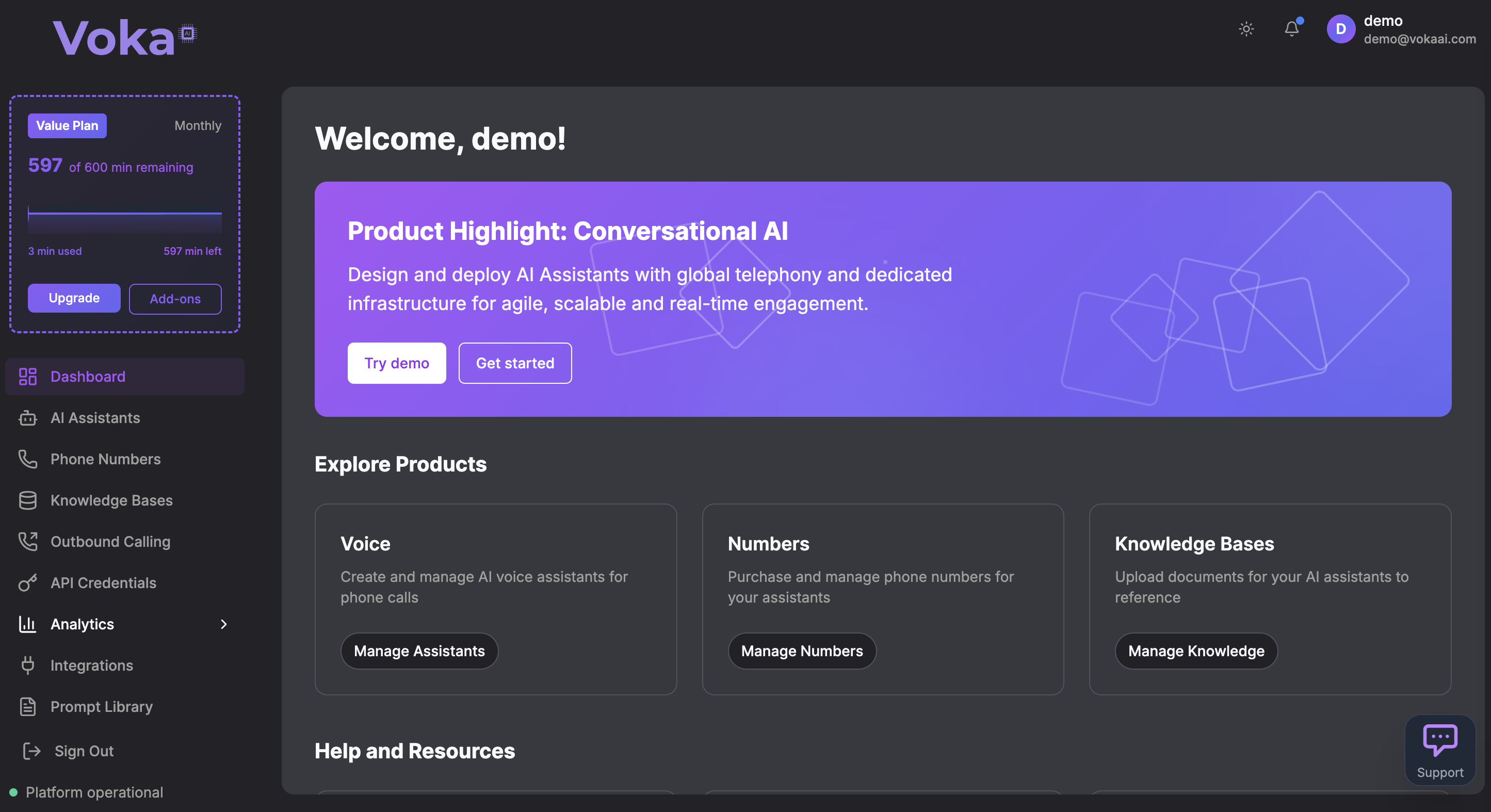
After logging in, you'll land on your Dashboard - your home base for managing AI voice assistants.
Main Navigation
The left sidebar provides access to all platform features:
AI Assistants
Create, edit, test, and manage your voice assistants. Configure instructions, voices, and integrations.
Phone Numbers
Search, purchase, and assign phone numbers. Manage number settings and view usage.
Knowledge Bases
Upload PDFs, text files, Word docs, or web URLs. Your assistants can reference this information during calls.
Analytics
View call performance metrics, success rates, durations, and costs. Access detailed call logs and recordings.
Integrations
Connect business tools like Acuity Scheduling, Square, Calendly, and Google Calendar.
Billing
Manage subscription, view usage, update payment methods, and upgrade plans.
Quick Start Workflows
Create Your First Assistant
Time: a few minutes
- Dashboard → Click "Create Assistant"
- Choose a template (Customer Support, Appointment Scheduler, etc.)
- Agent Tab: Set name, instructions, and greeting
- Voice Tab: Choose voice using Voice Playground
- Calling Tab: Assign phone number
- Save and Test
Purchase and Assign a Phone Number
Time: a few minutes
- Phone Numbers → Click "Search Numbers"
- Enter area code or location
- Click "Purchase" on desired number
- Go to AI Assistants → Edit assistant
- Calling Tab → Select the number
- Save
Connect an Integration
Time: a few minutes
- Integrations → Find desired integration (e.g., Acuity)
- Click Connect and log in to authorize
- AI Assistants → Edit assistant
- Agent Tab → Enable integration toggle
- Save
Understanding Your Assistant
When you create or edit an assistant, you'll configure these key areas:
Agent Settings
- Name - Assistant identifier
- Model - AI model selection (Meta-Llama or GPT-4o for premium)
- Instructions - Tell your assistant what to do
- Greeting - First message to callers
- Integrations - Connect to Acuity, Square, Calendly, etc.
- Tools - Webhooks, transfers, custom integrations
Voice Settings
- Voice Provider - Telnyx (recommended), Azure, AWS, ElevenLabs
- Voice Selection - Choose from many voices (male/female, various styles)
- Voice Speed - 0.25x to 2x
- Transcription - Telnyx Whisper, Deepgram Nova, or Azure
- Background Audio - Optional music or ambiance
Popular voices: astra, estelle, luna, orion, eliphas, sirius
Calling Settings
- Phone Numbers - Assign numbers to this assistant
- Web Calls - Enable browser-based calling
- AnchorSite Location - Optimize latency by data center
Advanced Settings
- Data Retention - Retain or don't retain call data
- Analysis - Testing and monitoring configuration
- Messaging - SMS settings
- Widget - Web embed code for your website
Key Features
Analytics & Reporting
Track your assistant's performance:
- Total Calls with trend percentage
- Success Rate (completed vs failed)
- Average Call Duration and total time
- Average Cost Per Call and total spend
- Call Logs with recordings and transcripts
- Performance by Phone Number breakdown
Integrations
Connect your business tools:
Booking Platforms:
- Acuity Scheduling, Square Appointments, Calendly
Calendars:
- Google Calendar
Automation:
- n8n.io
Using something that isn't on this list? Your assistant can still take the booking details as a message and pass them to you. See the integrations guide for what to do.
Knowledge Bases
Give your assistant information to share:
- Upload PDFs, Word docs, text files
- Add website URLs (automatic scraping)
- Multiple knowledge bases per assistant
- Automatic document search during calls
Mobile Experience
The Voka AI platform is fully mobile-responsive:
- Collapsed sidebar (hamburger menu)
- Touch-optimized interface
- All features available
- Swipe gestures supported
Plan Usage Tracking
Located: Top of sidebar
Monitor your plan usage in real-time:
- Current plan name
- Visual usage graph
- Minutes used / total minutes
- Percentage indicator
Color indicators:
- 🟢 Green: Under 70% usage
- 🟡 Yellow: 70-90% usage
- 🔴 Red: Over 90% usage
Quick actions:
- Upgrade - Switch to higher plan
- Add-ons - Scheduling integrations and SMS
Tips for Success
For Beginners
- ✅ Start with Templates when creating your first assistant
- ✅ Test thoroughly before going live with real customers
- ✅ Monitor usage in the sidebar to avoid overages
- ✅ Explore Integrations to automate workflows
For Power Users
- ✅ Use API Credentials for programmatic access
- ✅ Set up MCP Servers for custom integrations
- ✅ Configure Webhook Tools for advanced workflows
- ✅ Monitor Analytics Dashboard regularly
For Cost Optimization
- ✅ Check Billing regularly to track spending
- ✅ Use Natural voice (not NaturalHD) for lower costs
- ✅ Set Data Retention to "Do Not Retain" if not needed
- ✅ Monitor Average Call Duration to identify improvements
Status Indicators
Assistant Status
- 🟢 Active - Running and answering calls
- ⚪ Inactive - Configured but not active
- 🔴 Error - Configuration issue
Phone Number Status
- Active - Ready to use
- Pending - Purchase in progress
- Suspended - Issue with number
Integration Status
- ✅ Connected - Working properly
- ⚪ Not Connected - Not set up
- 🔴 Error - Connection issue
Call Status
- Completed - Successful call
- Failed - Technical error
- No Answer - Unanswered
- Busy - Line busy
Security & Privacy
Your data is protected:
- ✅ SOC 2 compliant
- ✅ GDPR compliant
- ✅ Encrypted in transit and at rest
- ✅ No data sold to third parties
- ✅ Optional data retention controls
Best practices:
- Use strong password
- Enable 2FA (if available)
- Keep API keys secure
- Log out on shared computers
What's Next?
Quick Start Guide
Get your first assistant up and running in minutes.
Create Your First Assistant
Step-by-step tutorial for building your first AI voice assistant.
Voice Customization
Choose the perfect voice and configure language settings.
Set Up Integrations
Connect Acuity, Square, Calendly, or other business tools.
Need Help?
- 📚 Feature Documentation - Detailed guides for all features
- 🔧 Troubleshooting - Common issues and solutions
- 💬 Contact Support - We're here to help!
- 💰 Pricing - View plans and pricing details