Acuity Scheduling Integration

Connect your Voka AI assistant to Acuity Scheduling so it can quote your services, check your calendar, and book, move, or cancel appointments while you're with a client.
Watch the setup guide
Nine minutes, every screen: what to check in Acuity first, the free trial setup in English and Spanish, intake answers, payment collection, add-ons and call notes, then real calls that book, reschedule, take a deposit, upsell an add-on and switch to Spanish.
Prefer YouTube? Watch it there; the description has chapters to jump to each step.
What is Acuity Scheduling?
Acuity Scheduling (a Squarespace company) is an appointment scheduling platform used by:
- 🦷 Dental & Therapy Practices - Dentists, chiropractors, physical therapists
- 💆 Wellness Services - Massage therapy, acupuncture, spa treatments
- 🧘 Fitness & Yoga - Personal training, wellness coaching
- 💼 Professional Services - Consultants, coaches, advisors, counselors
- 💅 Beauty Services - Hair stylists, estheticians, makeup artists
- 🎓 Education & Tutoring - Music lessons, tutoring, test prep
Already using Acuity? Your AI assistant can book into the same calendar you already work from, 24/7.
Acuity is a Premium Integration at $19.99/month on top of your Voka AI plan. It is not included in any plan by default. See Pricing below.
What Your Assistant Can Do
This list is the assistant's actual toolkit — nothing more. If something isn't here, see Limits & What's Not Supported.
✅ Answer questions about your services
- Read out your appointment types, with how long each takes and what it costs
- Tell a caller which staff member does a given service
- Share the service description you wrote in Acuity
✅ Check availability
- Look up open times for a service on a particular day
- Find the soonest opening when a caller says "whenever you can fit me in" (searches up to two months ahead)
- Check one practitioner's calendar if the caller asks for someone by name
✅ Book, move, and cancel
- Book a new appointment straight into your Acuity calendar
- Find the caller's existing appointments — matched to the phone number they are calling from
- Reschedule an existing appointment to a new time
- Cancel an appointment, subject to your Acuity cancellation policy
✅ Collect intake answers
- Ask the caller any required Acuity intake questions and submit the answers with the booking
- See Acuity Intake Forms for how to set this up
✅ Text a payment link (optional, off by default)
- Text the caller a secure Acuity payment or booking link. The caller pays on Acuity's page; Voka never takes card details
- Turned off unless you switch it on — see Deposit & No-Show Protection
✅ Book group classes (seat-aware)
- Book a spot in a class against your live Acuity class schedule
- Knows the difference between a class that's sold out and a day with no class scheduled, and says which
- Mentions when only a few spots remain; reserves one spot per call so groups are never overpromised
- Recurring multi-week series still sign up online — the assistant points callers there and never claims a series doesn't exist
✅ Sell packages, memberships & gift certificates (optional, off by default)
- Quote what a class pack, membership, or gift certificate is and what it costs — read live from your Acuity catalog
- Ask the caller whether they'd like the link, and only then text your Acuity store link with that item ready to check out
- Purchase always happens on Acuity's secure page — the assistant never takes payment itself
- Requires the SMS add-on and an Acuity plan that includes packages (Growing or higher)
✅ Honor prepaid packs & memberships on class bookings
- Recognizes the caller by the number they're calling from — never a number they merely claim
- Books a covered class without asking for payment, spending the credit that expires first
- Reads back the remaining balance only after confirming it went down; a cancelled class puts the credit back, and the assistant says so
- The call is tagged Package Used in your call log so prepaid bookings are distinguishable from new revenue
✅ Offer add-ons you approve (optional, off by default)
- Offers only add-ons you've explicitly ticked in the portal — nothing else, ever
- Asks once after the caller picks a service, extends the appointment length automatically on a yes, and tells the caller the new duration
✅ Narrow a long service list by category (optional, off by default)
- When you sell more services than the assistant can sensibly read out, it offers your Acuity categories instead of naming a handful of examples
- The categories are the ones already on your appointment types in Acuity — see Optional Capabilities
✅ Write call notes onto the booking (optional, off by default)
- Puts what the caller volunteered — a gate code, where to park, that they're running late — into the appointment's notes field in Acuity
- Nothing is read back to the caller, and the spoken confirmation is unchanged — see Optional Capabilities
✅ Ask callers about Acuity's text reminders (optional, off by default)
- Asks each caller once, before booking, whether they'd like text reminders, and opts the booking in when they say yes
- Acuity sends the reminders, from Acuity's own number — this is not Voka SMS — see Optional Capabilities
✅ Answer "have I paid?" from the Acuity record (optional, off by default)
- Tells a caller what Acuity has recorded against their appointment — a deposit, a payment in full, or a booking already marked paid
- Read-only: it cannot take a payment, send a payment link, or issue a refund — see Optional Capabilities
How It Works
During a Call
Client: "I'd like to schedule a massage therapy session for next week"
Assistant:
- Looks up your "Massage Therapy" appointment type
- Checks your Acuity availability for next week
- Offers the first three open times
- Asks for the caller's name and email
- Asks any required intake questions
- Books the appointment and confirms the details out loud
Result: the appointment appears in your Acuity calendar immediately, and Acuity sends the client its usual confirmation email.
The integration uses Acuity's official API with OAuth 2.0 authorization. Bookings are written to Acuity as they happen — there is no overnight sync.
Setup Guide
Video ID: VIDEO-ACUITY-001 Title: Connecting Acuity Scheduling to Voka AI Duration: 5-6 minutes Description: Complete walkthrough of Acuity integration setup Status: 🔴 Not recorded yet
Prerequisites
Before connecting, make sure you have:
- ✅ An active Voka AI account with the Premium Integration add-on ($19.99/month)
- ✅ An active Acuity Scheduling account
- ✅ Appointment types configured in Acuity
- ✅ A calendar for each practitioner or service provider
- ✅ Business hours configured
- ✅ Pricing set (if you want the assistant to quote prices)
If the Premium Integration add-on isn't on your account, your assistant will still answer the phone and greet the caller — then fail silently the moment it tries to look anything up in Acuity. See Troubleshooting.
The API works with all Acuity plans (Emerging, Growing, Powerhouse, and Enterprise).
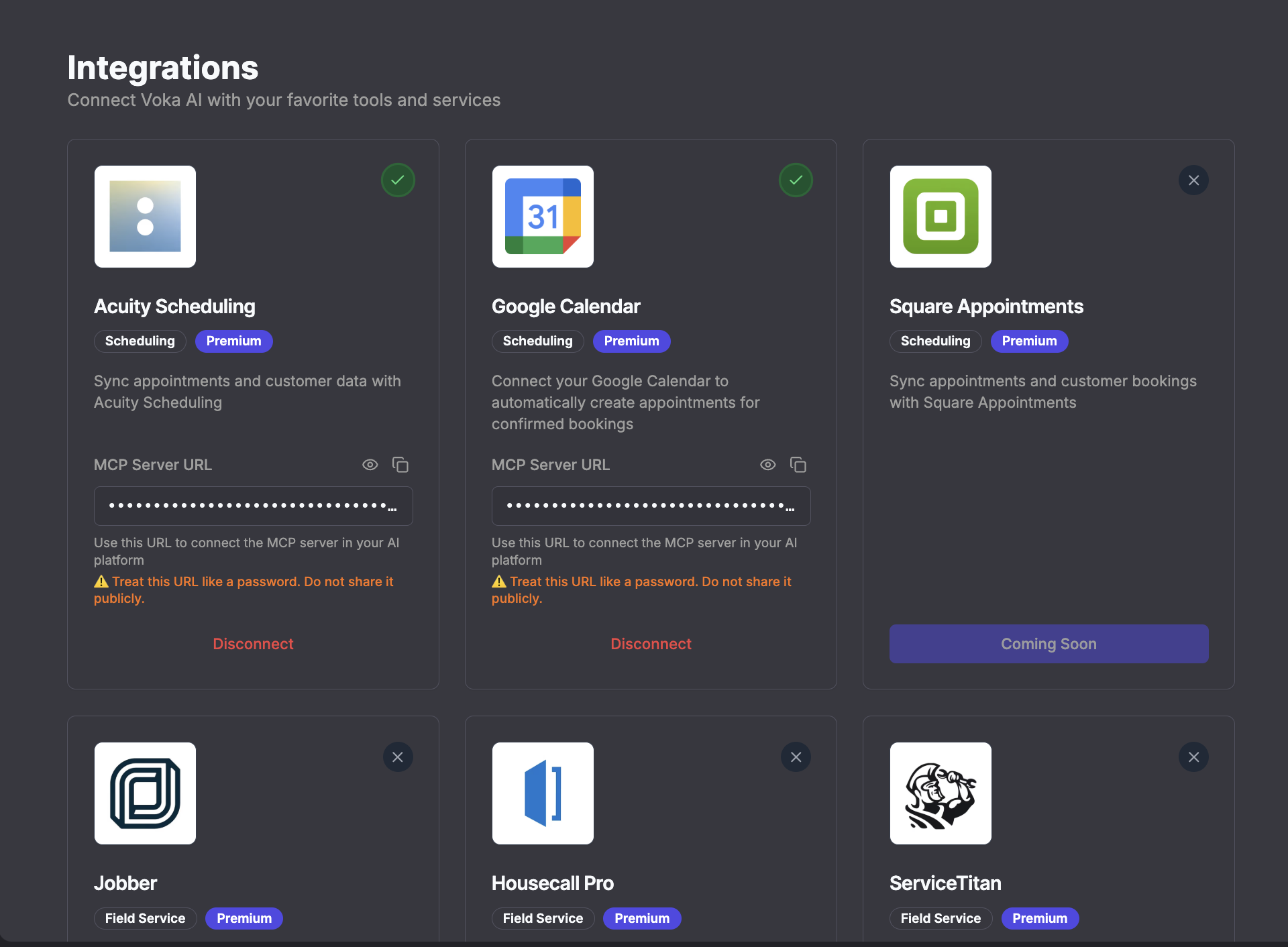
Step 1: Connect Acuity Account
- Log in to your Voka AI Dashboard
- Navigate to Integrations
- Find Acuity Scheduling in the list
- Click "Connect to Acuity"
Step 2: Authorize Access
- You'll be redirected to Acuity's authorization page
- Log in to your Acuity account
- Click "Authorize Application"
Acuity does not offer a pick-and-choose permissions screen. It grants a single permission that covers reading and writing your scheduling data — appointments, clients, appointment types, calendars, and account settings. There is no read-only or partial option. If you'd rather not grant that, don't connect Acuity.
Screenshot ID: ACUITY-002
Filename: ACUITY-002_acuity-authorization.png
Description: Acuity's OAuth authorization screen showing the single Voka AI permission request
Status: 🔴 Not started
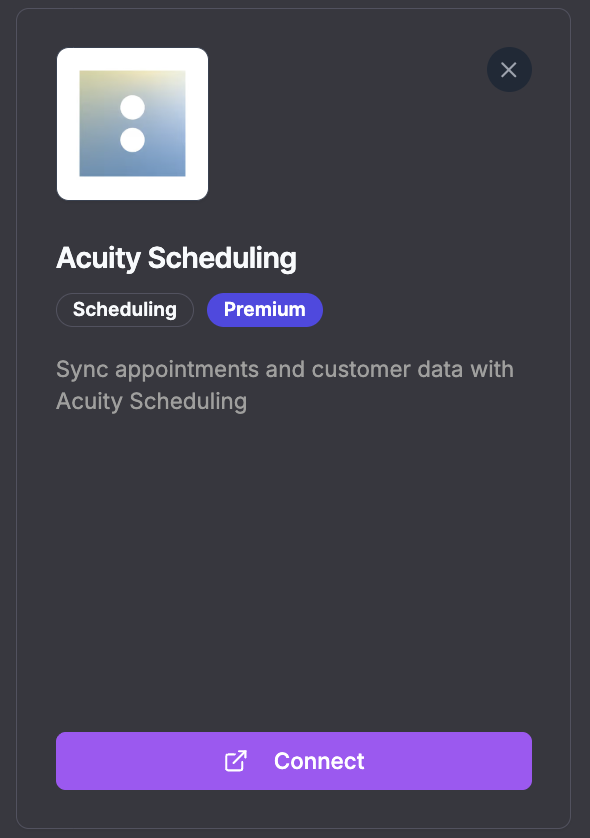
Step 3: Confirm Connection
- You'll be redirected back to Voka AI
- Verify the green checkmark next to Acuity Scheduling
- Status shows "Connected"
- Your Acuity business name appears
Step 4: Enable for Your Assistant
- Go to AI Assistants in the dashboard
- Select your assistant
- Click the Agent Tab
- Scroll to the Integrations section
- Toggle ON for Acuity Scheduling
- Click "Save Assistant"
Screenshot ID: ACUITY-004
Filename: ACUITY-004_enable-toggle.png
Description: Agent tab showing Acuity Scheduling integration toggle switched to ON
Status: 🔴 Not started
Step 5: Use the Premium Template
Create your assistant from the "Acuity Scheduling Assistant" premium template. It arrives pre-wired for every tool on this page — availability, booking, rescheduling, cancelling, intake questions, multiple locations, and payment links.
We update the Acuity template every time the integration gains a capability. An assistant running a hand-written or copied-and-pasted booking prompt quietly misses whatever shipped since it was written — most often rescheduling, cancelling, and deposits. Start from the template and add your business's own details (tone, policies, directions, parking) around it.
Things worth adding to your instructions on top of the template:
- Your cancellation policy, in the words you want the caller to hear
- What a first-time client should know (arrive 10 minutes early, parking, what to bring)
- Anything you do not want booked over the phone, and what to say instead
Step 6: Test the Integration
- Call your assistant's phone number
- Request an appointment
- Complete the booking
- Check your Acuity calendar and confirm the appointment appears with all its details
See Testing Guide for comprehensive instructions.
What Happens on a Call
Knowing the specifics here will save you a confusing listen-back to a recording.
Only three times are offered out loud. Even when your calendar has fifteen openings, the assistant reads the first three and then asks whether the caller would like to hear the rest. It isn't hiding availability — it's keeping the call short.
Long lists are shortened. If you have more than eight services, or more than eight bookable staff, the assistant names eight and tells the caller there are more. Callers who ask for something by name still get it. If you'd rather a long service list were narrowed by category than sampled, switch on category narrowing.
Prices are rounded to the nearest whole dollar. A $45.50 service is read aloud as "forty-six dollars." If exact pricing matters to you, either price your services in whole dollars or tell your assistant not to quote prices at all.
Times are always in your business's time zone — the one set in your Acuity account. A caller from another state hears your local time, not theirs. If you take out-of-area calls, add a line to your assistant's instructions telling it to say the zone out loud ("two PM Eastern").
An email address is required to book. Acuity won't accept a booking without one. If the caller is ringing from a number already on file, the assistant quietly reuses the email on their account rather than reading it back to them. A brand-new caller will be asked for one, and if they refuse, the booking cannot go through.
Callers can only manage appointments booked under the number they're calling from. To reschedule or cancel, the assistant matches the caller's phone number against Acuity. Someone calling from a different phone — a work line, a partner's mobile — will be told the assistant can't find their appointment and pointed to their confirmation email or to you. This is deliberate: it stops a stranger cancelling someone else's appointment by guessing a name.
A caller can't book on someone else's behalf and have that person manage it later. The appointment is tied to the number that called.
Recently-changed services can take a few hours to appear. Availability is checked live (refreshed about once a minute), but your list of services and prices is cached for around four hours. A service you add or reprice in Acuity may not be offered until that expires.
Deposit & No-Show Protection
Your assistant can text callers a secure Acuity payment link — either to take a deposit before the slot is held, or to collect payment right after booking. This is switched off by default.
Before you can use it
Two things must be in place, or the option stays greyed out:
- The SMS add-on on your Voka AI plan — the link is delivered by text, so without SMS there is nothing to send it with.
- SMS enabled on the assistant you want to use it on, in the assistant's settings.
Configure it under Integrations → Acuity → Manage.
The four modes
| Mode | What the assistant does | Is the slot held? |
|---|---|---|
| None (default) | Books normally and never mentions payment. | Yes |
| Deposit only | Confirms the time, then texts a link for the caller to finish booking and pay the deposit online. It does not book by phone. | No |
| Full payment only | Books the appointment by phone, then texts a secure checkout link for the full amount. | Yes |
| Both | Offers the caller the choice: pay in full (booked by phone) or deposit online (finish on the link). | Depends on their choice |
You can apply payment to every service or hand-pick which ones need it (up to 250).
In deposit-only mode nothing is written to your Acuity calendar during the call. The caller has to open the text and complete the booking themselves. Voka has no way of knowing whether they did. If they never open it, the time stays open and you will not be told. If you need the slot held, use "Full payment only" or "Both".
If you switch on Full payment only for a service that has no payment configured on the Acuity side, the booking still goes through — but no link gets texted, and nothing in your dashboard tells you it didn't. Before you enable a mode, check that each affected appointment type actually has payment turned on in Acuity.
What the assistant will and won't say
- It never reads amounts out loud. It says a link is coming; the caller sees the price on the link.
- It confirms the day and time and gets a "sound good?" before sending anything.
- Rescheduling never triggers a payment request. Moving an existing appointment is not a new booking, so no new link is sent.
Optional Capabilities
Four further behaviours are available, and each one is off until you switch it on under Integrations → Acuity → Manage. If you leave them alone, nothing about your calls changes.
| Capability | What it changes on a call |
|---|---|
| Category narrowing | On a long service list, the assistant offers your Acuity categories instead of a sample of services |
| Call notes | What the caller volunteers is written to the appointment's notes field in Acuity |
| Text reminders | The assistant asks the caller whether they'd like Acuity's text reminders, and opts the booking in |
| Payment lookups | The assistant can tell a caller what Acuity has recorded as paid on their appointment |
Category narrowing
If you sell more than the eight services the assistant reads aloud, it currently names eight examples and moves on. With category narrowing on, it offers your categories instead — something like:
"We offer twenty-four services across a few areas — massage, facials, injectables, or something else. Which sounds closest?"
Those categories are the ones already sitting on your appointment types in Acuity. Nothing is created in Voka and there is no list to maintain here — if you want the wording changed, rename the category in Acuity. Capitalisation doesn't matter: "Massage" and "massage" are treated as one area.
It only engages when narrowing genuinely helps. All of these have to be true:
- You have more than eight bookable services — a shorter menu is still read out as it is now
- At least two categories, with names short enough to say out loud
- Your categories average two or more services each — one category per service just replaces one long list with another
- More of your menu is categorised than isn't — a grouping that misses most of your services would send callers down the wrong path
When they aren't met, the call sounds exactly as it does today.
Categories are an extra way to find a service, never a replacement. A caller who names a service outright gets it, whether or not it is in a category the assistant read out.
Call notes
Callers volunteer things that belong on the appointment: the gate code, which door to use, that they're running ten minutes late, that they're bringing a child. With call notes on, that goes into the appointment's notes field in Acuity, where you'd look for it anyway.
What lands there:
- Only what the caller actually said, condensed, in their own words
- Not a summary of the call — it isn't a transcript or a recap
- Not the service, time, or name — those are already on the booking, so repeating them just buries the part you needed to read
The caller is not read the note back, is not asked to approve it, and the spoken confirmation is unchanged. From their side the call sounds identical.
Two things worth knowing:
- Your client is not emailed about the note. It's added quietly to the appointment; Acuity does not send them an "appointment updated" message because of it.
- A note your team wrote is not overwritten. If nothing was volunteered on the call, nothing is written — the field is left exactly as it was rather than blanked.
Intake answers go into the Acuity form fields you configured, because Acuity requires them. Call notes are the loose detail nobody built a field for. See Acuity Intake Forms.
Text reminders
Somebody who books on your Acuity page is opted in to Acuity's text reminders. Somebody who books by phone never was — there was no point in the conversation where they were asked.
With this on, the assistant asks each caller once, before booking:
"Would you like text reminders about your appointment?"
A yes opts that booking in. A no is dropped and not raised again. It never asks on a reschedule — the caller has already answered once.
The reminders come from Acuity's own number, on the schedule you set in Acuity. This does not use Voka SMS and does not need the SMS add-on. If you want to change when reminders go out or what they say, that's an Acuity setting.
Acuity doesn't report the opt-in back through its API, so we can't confirm it landed. The assistant is deliberately worded to say it has asked, and will not tell a caller their reminders are on.
Check it yourself on the appointment in Acuity's admin: Sms Opt-in: Accepted. That records the caller agreed — whether a text then goes out depends on your Acuity setup. With no verified number, or client reminders unconfigured, an accepted opt-in still sends nothing.
This needs an Acuity plan that includes text messaging. Voka checks your plan when you open the setting and replaces the switch with a note if it isn't covered, rather than letting you turn on something that can't work. Reminder timing and wording stay in Acuity, under Client Reminders.
Payment lookups
A caller can ask what Acuity has recorded against their appointment, and the assistant reads it back — a deposit, a payment in full, or a booking Acuity already has marked as paid.
- It is read-only. It cannot take a payment, send a payment link, or offer a refund.
- Callers only ever reach their own appointments, matched to the number they're calling from — the same rule that governs rescheduling and cancelling.
- Where Acuity shows a booking as paid but has no card transaction behind it — a package, a gift certificate, cash at the desk — the assistant confirms it is showing as paid and stops there. It won't tell the caller how it was paid, because the record doesn't say.
- Where Acuity has recorded part of the price, the assistant can say what Acuity still shows outstanding if the caller asks. That's reading the record, not chasing them for it — it still won't take payment on the call.
- If the payment record can't be read at all, the assistant says it can't check rather than treating a failed lookup as "nothing paid".
A payment taken at your front desk, spent off a package, or made by any route Acuity never saw looks identical to no payment at all on the record. So when there's nothing on the appointment, the assistant says it can't see a payment and offers to have your team check — it does not conclude the caller owes you money.
If that matters to your business, the fix is on the Acuity side: record payments against the appointment so there's something to find.
Intake Forms
If your appointment types use Acuity intake forms, any field marked required has to be answered at the moment of booking — Acuity rejects a booking that's missing one. Your assistant asks the caller for these during the call, one question at a time.
For fields a caller can't sensibly answer by phone (a file upload, for example), set an answer in advance under Integrations → Acuity → Manage → Forms, or every booking for that service will fail.
See Acuity Intake Forms for the full walkthrough.
Your assistant does not ask about optional fields and does not fill them in. What Acuity does with them afterwards — whether it emails the client to complete them — is set on the Acuity side, so check your Acuity notification settings rather than assuming.
Multiple Practitioners & Locations
Multiple practitioners
Give each practitioner their own Acuity calendar. Then:
- A caller who asks for someone by name gets that person's availability
- A caller with no preference is offered whatever Acuity returns across every calendar that can do the service
- If more than eight staff can do a service, the assistant names eight and mentions there are more
There is no round-robin or automatic-assignment setting in Voka. Which practitioner gets offered comes down to who is genuinely free in Acuity, and to whom the caller asks for.
Multiple locations
Voka works out your locations from the Location field on each Acuity calendar — Acuity has no separate list of locations for us to read. That has three consequences worth knowing:
- Fill in the Location field on every calendar. If it's blank, that calendar has no location as far as Voka is concerned. If it's blank on all of them, Voka treats your business as a single location and merges times from every calendar together, never naming an address to the caller.
- Spell it identically everywhere. "Main St" on one calendar and "Main Street" on another creates a phantom third location, and callers will be offered a choice between two places that are actually one.
- A practitioner who works at two sites is handled properly. If someone is asked for by name and works at both offices, the assistant checks both and labels each time with the office it's at, rather than silently picking one.
Open each Acuity calendar and check the Location field reads exactly the same for every calendar at the same address. This is the single most common cause of odd multi-location behaviour on calls.
Configuration Options
Which services the assistant offers
Every appointment type your Acuity account returns is offered to callers — including ones you've marked private, and internal or administrative types you never intended a client to hear about. There is no screen in Voka for hiding, renaming, or blocking a service.
Control this in Acuity itself:
- Deactivate appointment types you no longer sell
- Move genuinely internal appointment types out of your public scheduling setup
- For services you don't want booked by phone but do want callers to know about, add a line to your assistant's instructions: "For [service], don't book it — take a message and say someone will call back to arrange it."
Classes, package sessions, and admin blocks look like ordinary appointment types to us. If they're active in Acuity, a caller can be offered one — and the booking will behave unpredictably. Deactivating them is the fix.
Time zones
All times are spoken in your business's time zone, exactly as set in your Acuity account. Voka does not detect where the caller is and does not convert times for them.
If you regularly take calls from other time zones, add this to your assistant's instructions:
Always say the time zone out loud when offering or confirming a time,
for example "two PM Eastern".
Buffer times
Configure buffer time between appointments in Acuity:
- Cleanup time
- Travel time (mobile services)
- Practitioner breaks
- Room turnover
Your assistant reads availability straight from Acuity, so these buffers are respected automatically. There is nothing to configure in Voka.
Best Practices
1. Keep Acuity Data Current
Your assistant is only as accurate as your Acuity calendar.
✅ Do:
- Update calendars when schedules change
- Mark practitioner time off immediately
- Keep appointment type descriptions current
- Update pricing when it changes
- Set proper buffer times between appointments
❌ Don't:
- Manage appointments outside Acuity
- Forget to block vacations and holidays
- Leave outdated or internal appointment types active
2. Set Clear Availability
Configure realistic availability in Acuity:
- Set true business hours
- Block personal time
- Account for admin tasks
- Include lunch breaks
- Mark holidays in advance
3. Handle Cancellations
Your assistant cancels appointments immediately — there's no queue and nothing for you to approve afterwards. It does respect your Acuity cancellation window: if a caller rings inside it, the appointment stays on the books and the assistant tells them to contact you directly.
Put your policy in your assistant's instructions so callers hear it in your words:
Cancellation Policy:
- We require 24-hour notice for cancellations
- Late cancellations may incur a fee
- Inside 24 hours, ask the caller to phone us directly
Moving an appointment happens live, and the caller has to be ringing from the number the appointment was booked under.
4. Collect Important Information
Use required Acuity intake fields for anything you truly must have — the assistant will ask for those and won't be able to book without them. For softer details, add to your instructions:
For each appointment, try to capture:
- What they're coming in for (brief)
- Special requests or accommodations needed
- Preferred practitioner (if any)
Don't have the assistant ask about medical history, allergies or other health details. Keep those in your own intake form.
Name and email are always collected; the phone number comes from caller ID, so there's no need to ask for it.
5. Manage First-Time Clients
Special handling for new clients:
For first-time clients:
- Explain what to expect at their appointment
- Inform them to arrive 10 minutes early
- Share parking/location information
- Explain the cancellation policy
Limits & What's Not Supported
Read this before promising a caller something the assistant can't do.
Not supported at all
| Why, and what to do instead | |
|---|---|
| Class series (multi-week enrollments) | Single class spots are bookable by phone (seat-aware, one spot per call). Enrolling in a recurring multi-week series is not — the assistant points those callers to your online page. It will never claim the series doesn't exist. |
| Coupon codes | A caller can't read a discount code down the phone. Codes apply at Acuity's online checkout as usual — including on the payment and package links the assistant texts. |
| Redeeming a pack against a one-to-one appointment | Prepaid packs and memberships are spent automatically on class bookings. For ordinary appointments the pack isn't applied yet — the booking is made normally and you reconcile the pack in Acuity. |
| Recurring appointments | One booking, one time. A caller wanting a standing weekly slot needs to be booked manually. |
| Blocking out time in your calendar | The assistant only reads your availability. It can't add time off, holidays, or personal blocks — do that in Acuity. |
| Waitlists | If nothing is free, the assistant says so. There's no waitlist to add the caller to. |
| Two appointments on one call | One appointment per call, deliberately: the assistant refuses a second booking rather than risk confirming something that wasn't written. (Add-ons on the one appointment are fine — see above.) The caller can ring back, or your team adds the second. |
| Editing a client's record | The assistant reads client details and creates a client as a side effect of booking. It can't update a name, email, phone number, or any saved preference. Edit those in Acuity. |
| Taking or refunding a payment on a lookup | Payment lookups are read-only. The assistant reports what Acuity has recorded and stops there — it cannot charge a card, send a payment link off the back of a lookup, or issue a refund. |
| Telling a caller they haven't paid | Deliberately not supported. A payment taken at your desk, spent off a package, or made any way Acuity never saw is indistinguishable from no payment, so when the record is empty the assistant says it can't see one and offers to have your team check. |
| Confirming text reminders are switched on | The assistant says it has asked about reminders, never that they're active — Acuity doesn't report the opt-in back through its API. Check the appointment in Acuity for Sms Opt-in: Accepted. |
| Choosing your own categories in Voka | Category narrowing reads the categories already on your Acuity appointment types. There is no screen in Voka to add, rename, or reorder them — do it in Acuity. |
Built-in limits
- Only three times are read out loud before the assistant asks whether to continue
- Only eight services or staff are named when there are more — unless you switch on category narrowing, which offers your Acuity categories instead of a sample
- Prices are rounded to the nearest dollar
- "Soonest available" searches two months ahead; beyond that, the assistant reports nothing available, which sounds to a caller like you're fully booked
- Bookings are rate-limited (roughly three per minute, with a short cooldown on identical requests) to prevent a confused call double-booking a slot
Reminders and confirmations
Voka does not send appointment reminders or confirmations. Acuity sends its own confirmation email when a booking is made — that email is Acuity's, configured in Acuity. Voka sends a text only in the moment, when it's handing over a payment or booking link. There is no Voka 24-hour reminder, no 1-hour reminder, and no automated confirmation text.
What the assistant can do, if you switch it on, is ask the caller whether they'd like Acuity's text reminders and opt that booking in — see Text reminders. The reminders themselves are still Acuity's: sent from Acuity's number, on the schedule you set in Acuity. Phone bookings simply get the same opt-in your online bookings already have.
If reminders matter to you, set them up in Acuity.
Troubleshooting
The assistant greets the caller, then goes quiet
This is the most common failure, and it has four possible causes that all sound identical on a recording — the assistant answers normally, then stops as soon as it tries to look something up.
| Cause | How to check | Fix |
|---|---|---|
| No Premium Integration add-on | Billing page — is the Premium Integration add-on listed? | Add it ($19.99/month) |
| Voka account not active | Billing page — past due, paused, or suspended? | Settle billing to reactivate |
| Acuity not connected | Integrations page — does Acuity show "Connected"? | Reconnect Acuity |
| Stored connection unreadable | Everything looks fine but calls still fail | Disconnect and reconnect Acuity; if it persists, contact support |
If the first three all look right, disconnect and reconnect Acuity before contacting support — it clears the fourth.
"Acuity integration not working"
Check these:
- ✅ Integration shows "Connected" (green checkmark)
- ✅ Integration is toggled ON for this assistant
- ✅ The Premium Integration add-on is on your plan
- ✅ Acuity account is active
- ✅ Appointment types are configured and active in Acuity
- ✅ Calendars are set up with availability
Still not working?
- Disconnect and reconnect the integration
- Check Acuity's system status
- Contact support with the call transcript
"It says there's no availability, but my calendar is open"
Possible causes:
- The caller asked for something more than two months out — the "soonest available" search only looks two months ahead
- The service is new — your service list is cached for about four hours after a change
- No calendar can do that appointment type — check the appointment type is assigned to at least one calendar in Acuity
- Buffers or blocks are eating the slots — try booking the same time manually in Acuity and see what happens
"The caller says it couldn't find their appointment"
Almost always the phone number. The assistant matches appointments to the number the caller is ringing from, so:
- A client who booked online with a different number won't be found
- A client calling from a work phone, a landline, or a partner's mobile won't be found
- A withheld or blocked caller ID means the assistant declines outright
This is intentional — it prevents someone cancelling an appointment that isn't theirs. Point these callers to the link in their Acuity confirmation email, or handle it yourself.
"Appointments not appearing in Acuity"
Possible causes:
- Appointment type not found — make sure the type exists, is active, and the name matches what the caller said
- No availability — check the calendar has open slots and business hours are set
- Missing email address — Acuity refuses bookings without one, and a caller who won't give an email can't be booked
- An unanswered required intake field — see Acuity Intake Forms
Debug:
- Review the call transcript
- Try booking the same appointment manually in Acuity
- Check Acuity's activity log
"Client duplicates being created"
Acuity matches clients by:
- Email address (primary)
- Phone number
- Name
To prevent duplicates:
- Encourage clients to use the same email each time
- Use a consistent phone number format
- Clean up duplicates periodically in Acuity
"Integration disconnected"
Why this happens:
- Acuity authorization expired
- Account password changed
- Permissions revoked
- Account downgraded or suspended
How to fix:
- Go to the Integrations page
- Click "Reconnect" next to Acuity
- Re-authorize access
- The integration resumes working
Pricing & Availability
Voka AI Side
- 💳 Acuity is a Premium Integration add-on: $19.99/month, charged on top of your plan
- ✅ No per-appointment or per-booking fees
- ℹ️ Bookings are rate-limited for safety (see Limits), not billed per call
- ℹ️ Payment links additionally require the SMS add-on
Acuity Side
- Works with all Acuity plans
- Standard Acuity subscription pricing applies
- No extra fees from Acuity for API usage
Security & Privacy
Data Protection
- ✅ OAuth 2.0 secure authorization
- ✅ Encrypted connections (TLS/HTTPS)
- ✅ No Acuity password is ever given to or stored by Voka AI
- ✅ Access tokens encrypted at rest
Access Scope
Acuity issues a single, all-or-nothing permission. There is no read-only mode and no way to grant part of it. Connecting Acuity gives Voka AI read and write access to:
- Appointments
- Client records (name, phone, email)
- Appointment types and pricing
- Calendars and availability
- Your Acuity account settings, including your business time zone
- Intake form questions, and the answers submitted with a booking
What Voka AI does not receive:
- Card numbers or payment credentials. Payment happens on Acuity's own hosted page — Voka only ever passes along a link to it.
Health information
Voka is not offered as a HIPAA-compliant service and does not sign Business Associate Agreements. Don't collect health information on calls; keep it in your own intake system.
Calls to your assistant are recorded and transcribed, so anything a caller says, including a reason for visit, ends up in that transcript.
Disconnect Anytime
- Go to the Integrations page
- Click "Disconnect"
- Access is revoked immediately
- Appointments already booked remain in Acuity
FAQs
Does this work with the Acuity mobile app?
Yes. Appointments created by your assistant appear in the Acuity mobile app right away, the same as any other booking.
Can clients reschedule or cancel through the assistant?
Yes, both. The assistant finds the appointment by the number the caller is ringing from, then moves or cancels it live. A cancellation inside your Acuity cancellation window is refused — the appointment stays booked and the caller is told to contact you directly.
Does it sync with Google Calendar or Outlook?
If you already have Acuity synced to Google Calendar or Outlook, appointments booked by your assistant flow through to those calendars via Acuity, exactly as your other bookings do.
Can the assistant handle payment?
Yes, if you switch it on. The assistant can text a secure Acuity payment link — either as a deposit before the slot is held, or as full payment right after booking. It's off by default and needs the SMS add-on. See Deposit & No-Show Protection. The assistant never handles card details itself and never reads amounts out loud.
What about intake forms?
Any field you've marked required in Acuity is asked for during the call and submitted with the booking — Acuity won't accept the booking otherwise. For fields a caller can't answer by phone, such as a file upload, set an answer in advance under Integrations → Acuity → Manage → Forms, or bookings for that service will fail. See Acuity Intake Forms.
Optional fields are not asked about and not filled in.
Can we use this for classes and workshops?
No. The assistant books one person into one one-to-one appointment and has no concept of class capacity.
It's worth going further than "not supported": because a class looks like any other appointment type to us, an active class in Acuity will be read out to callers as if it were bookable, and the booking will then behave unpredictably. If you run classes, deactivate those appointment types in Acuity and tell your assistant to take a message for class enquiries instead.
Does it handle time zones correctly?
It always uses your business's time zone, as set in Acuity. It does not detect where the caller is and does not convert to their local time. If you take out-of-area calls, have your assistant say the zone out loud.
Will Voka send my clients a reminder?
No. Voka sends no reminders and no scheduled confirmations of its own.
It can, though, get your phone bookings into Acuity's text reminders. Switch on text reminders and the assistant asks each caller once, before booking, whether they'd like them, and opts the booking in on a yes. Acuity sends the messages from its own number, on the schedule you set in Acuity — this is not Voka SMS and doesn't need the SMS add-on. It needs an Acuity plan that includes text messaging.
One thing to be aware of: Acuity doesn't report the opt-in back to us, so the assistant only ever says it has asked about reminders. To confirm one landed, open the appointment in Acuity and look for Sms Opt-in: Accepted.
Can a caller ask whether they've already paid?
Yes, if you switch on payment lookups. The assistant reads back what Acuity has recorded against their appointment — a deposit, payment in full, or a booking already marked paid — and callers only reach their own appointments, matched to the number they're calling from.
It is read-only: it can't take a payment, send a payment link, or refund anything.
It also won't tell a caller they haven't paid. Money you took at the desk, or that came off a package, or that Acuity never saw, looks the same as no payment at all. With nothing on the record the assistant says it can't see a payment and offers to have your team check, rather than telling a paying client they owe you.
Can the assistant put a note on the appointment?
Yes, if you switch on call notes. Anything the caller volunteers that you'd want on the booking — a gate code, parking, running late — goes into the appointment's notes field in Acuity, condensed and in their words.
It won't summarise the call, and it won't repeat the service, time, or name that are already on the booking. Nothing is read back to the caller.
I have a very long service list. What do callers actually hear?
By default the assistant names eight services and says there are more. If that list is long enough that eight examples aren't much help, switch on category narrowing and it offers your Acuity categories instead — "we have massage, facials and injectables, which sounds closest?" — then goes to services once the caller picks a direction.
The categories are read from your Acuity appointment types; there's nothing to set up in Voka. It only kicks in on lists longer than the assistant reads aloud, and only where your categories genuinely narrow things down — so a short menu, or one where every service sits in its own category, is unaffected.
Can the assistant update a client's details?
No. It can look a client up and create one as part of a booking, but it can't change a name, email, phone number, or saved preference. Edit those in Acuity.
Connected to Acuity? 🎉 Your assistant can now book, move, and cancel appointments around the clock.