Call Backs
Every caller who asks to be called back, in one list you can work through.
When your assistant takes a callback request, it lands in Call Backs with the caller's number and what they wanted. Call them back, add a note, and mark it done — so nothing slips, and nobody on your team calls the same customer twice.
Where to find it: Analytics → Call Backs
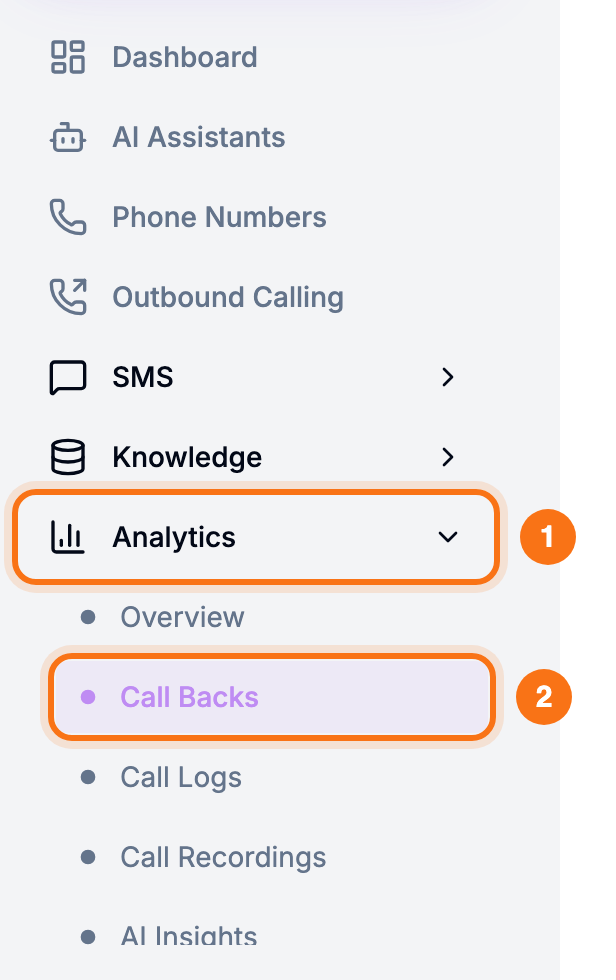
There's nothing to set up. Requests arrive here whether or not you've turned on alerts. To be told when one comes in, see Callback Notifications.
What's on the page
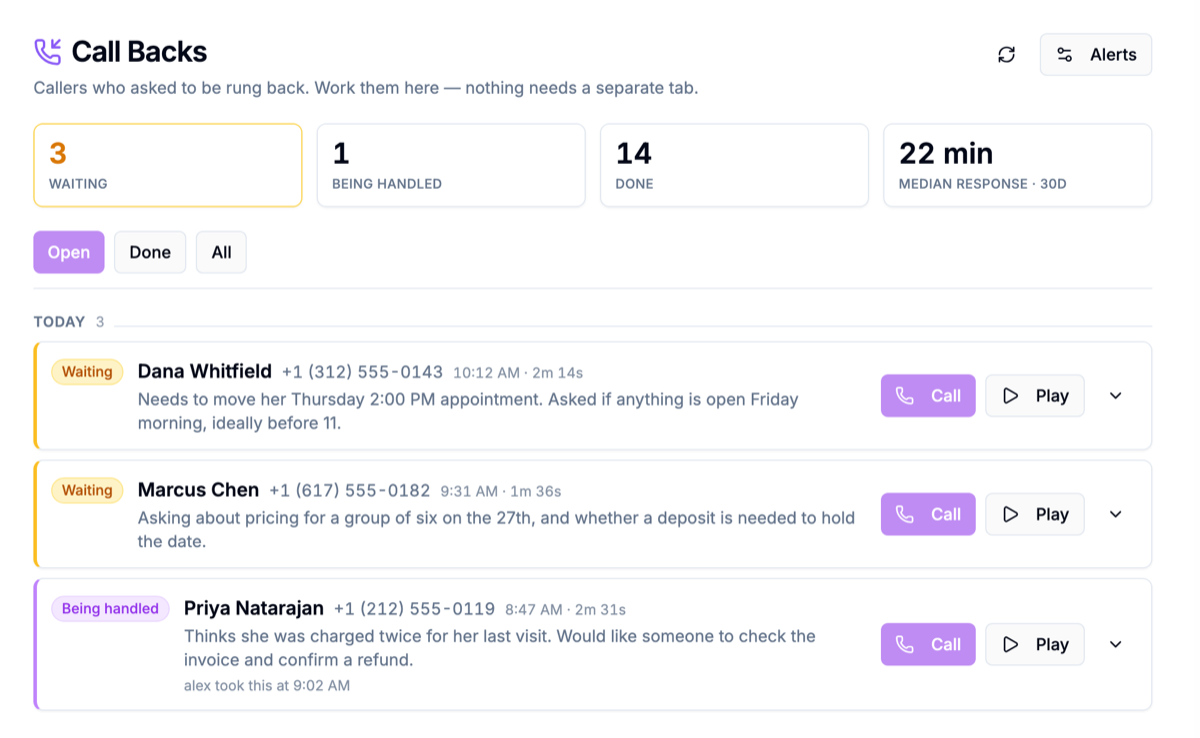
The four tiles
| Tile | What it counts |
|---|---|
| Waiting | Requests nobody has picked up yet |
| Being handled | Someone pressed I'm handling this but hasn't marked it done |
| Done | Requests marked done |
| Median response · 30d | The typical time from the call to someone picking it up, over the last 30 days |
The tiles always count your whole list, whichever filter you're viewing. Median response shows a dash (—) until at least three requests from the last 30 days have been picked up.
Filters
- Open — everything not yet done (Waiting and Being handled). This is the default.
- Done — requests you've closed.
- All — both.
Each row
Requests are grouped by day — Today, Yesterday, then the date. Each row shows:
- the status, also shown by the colour of the left edge: amber for Waiting, purple for Being handled, green for Done
- the caller's name, or Caller didn't give a name
- the number to call back, the time of the call and how long it lasted
- a short summary of what they wanted
Call and Play sit on the row itself, so you don't have to open it first.
The list doesn't update while it's open. Press refresh (↻) next to Alerts to check for new requests.
Working a callback
Click a row, or the arrow on its right, to open it.
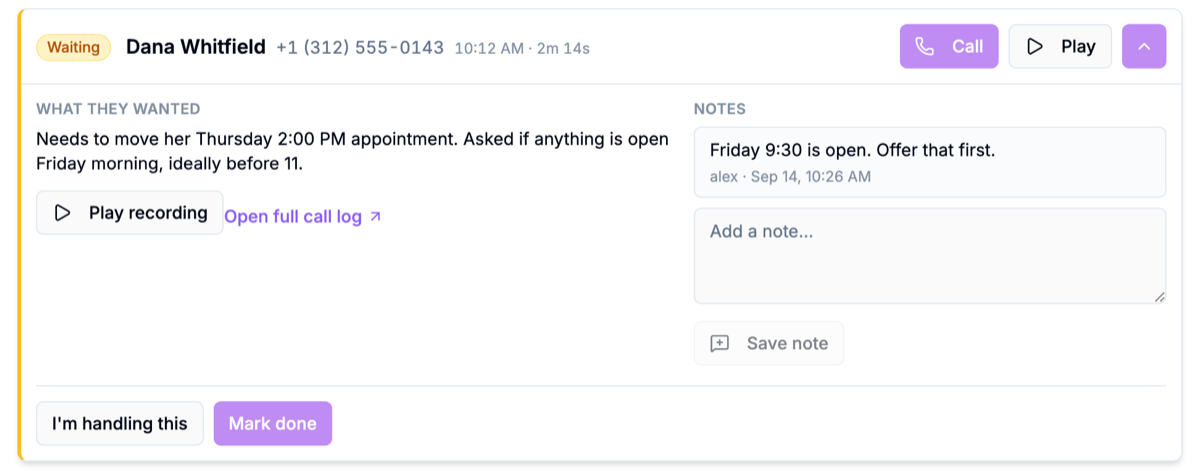
- Read what they wanted. Press Play recording to hear the call, or Open full call log for the transcript.
- Press I'm handling this before you dial. The row changes to Being handled and shows who took it and when, so nobody else calls the same person.
- Call. On a phone, Call dials the number. On a computer, it opens your default calling app, if you have one.
- Add a note if anything is worth recording — "Left a voicemail, will try again after 2." Notes stay on the request with who wrote them and when.
- Mark done once it's dealt with.
Two more buttons for when plans change:
- Hand back puts a request you took back to Waiting.
- Reopen brings a done request back to the Open list — for example, when the caller needs a second call.
Mark done works straight from Waiting, and still counts toward Median response. Pressing I'm handling this first is what stops two people calling the same customer at once.
On your phone
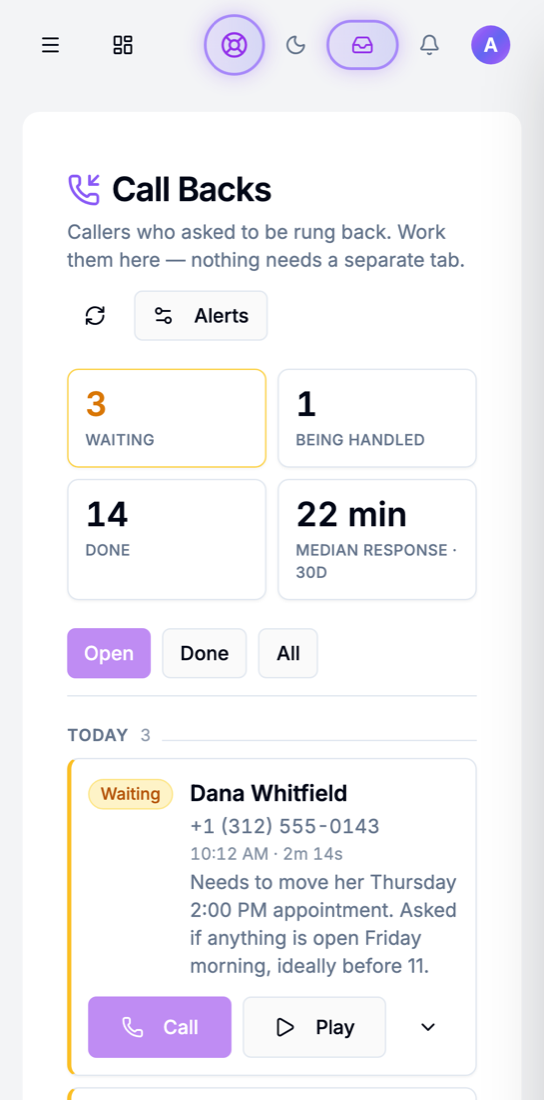
Call Backs works in your phone's browser. Sign in at voice.vokaai.com, tap the menu (☰), then Analytics → Call Backs. Call dials the number straight from the list.
Worth knowing
Requests show up shortly after the call ends, once the call has been analysed — not while the caller is still on the line.
Only calls that end in a callback request are listed. How your assistant takes one, and the switch that controls it, are covered in Callback Notifications.
Your setup test call isn't listed, so you won't find a callback to yourself on your first visit.
No number, no Call button. If no number to call back was captured, Call is greyed out — open the call log to see the numbers on the call. Play is greyed out when a call has no recording.
Requests from before Call Backs was added aren't listed. Find them in Call Analytics by setting the All Outcomes filter to Callback.
The notifications bell lists them too. Its Priority tab shows callback requests from the last 7 days; click one to open it here. The bell doesn't know what you've marked done, so use Call Backs to track what's finished.
Troubleshooting
Call Backs is empty
- Nothing has come in since the page was added. Older requests are in Call Analytics under the Callback outcome.
- Your assistant isn't offering callbacks. Check Take Callback Requests is on for each assistant (AI Assistants → your assistant → Agent tab).
- Your assistant is booking or transferring instead. That's by design — a callback is only offered when the assistant can't help and no transfer fits.
A caller asked for a callback but isn't listed
Press refresh (↻) first — requests arrive once the call has been analysed, shortly after it ends.
If it's still missing, open the call in Call Analytics and read the summary. A caller who hung up before the assistant could take their details, or who only mentioned calling back in passing, may not be recorded as a request.
"Someone else took this one just now"
Someone pressed I'm handling this or Mark done on that request a moment before you. The row updates to show their change — check it before calling, so the customer doesn't get two calls.
Alerts aren't arriving
Still stuck? Email support@vokaai.com with the time of the call and we'll check your assistant's setup.