Conditional Notifications
Insight delivery sends you every call. Conditional Notifications send a message only when a call matches a condition you set — and, crucially, they can send it to a different person for each condition.
That second part is what makes them useful beyond alerting. If you word one insight per person, each caller's message reaches the one person who should act on it, and nobody else is disturbed.
Where to configure: AI Assistants → select your assistant → Insights tab → Conditional Notifications
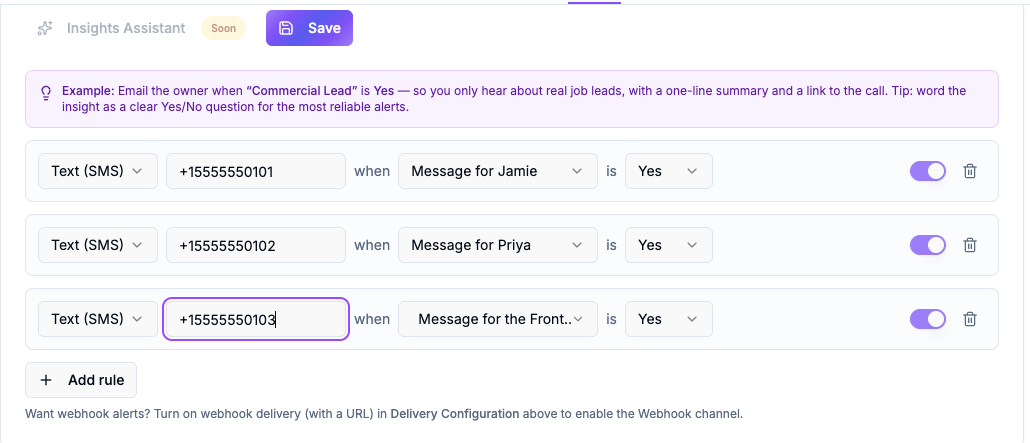
Every rule reads as a sentence: "Text this number when this insight is Yes."
When to use this
| You want | Use |
|---|---|
| A copy of every call's insights | Delivery Configuration (portal, email or webhook) |
| To hear only about the calls that matter | Conditional Notifications |
| Different calls to reach different people | Conditional Notifications, one rule each |
Typical uses:
- Route messages to the right team member. A salon that rents chairs texts each stylist only the callers who asked for them.
- Escalate what can't wait. Text the owner when
Urgent Issueis Yes, and leave everything else in the portal. - Only real leads. Email the sales line when
Qualified Leadis Yes.
Before you start
- Email rules work on every plan.
- Text (SMS) rules need the SMS add-on active and a verified business number. Until that number is verified, SMS rules are saved but skipped — they start sending on their own once verification completes, with nothing to re-do.
- Webhook rules need a webhook URL saved and enabled in Delivery Configuration above.
Step 1 — Write the insight as a Yes/No question
A rule fires on an exact match, so the insight must answer with a single, predictable word. Word it as a clear Yes/No question and say so explicitly in the instructions.
Where: Analytics → AI Insights → Templates → Create Custom Insight
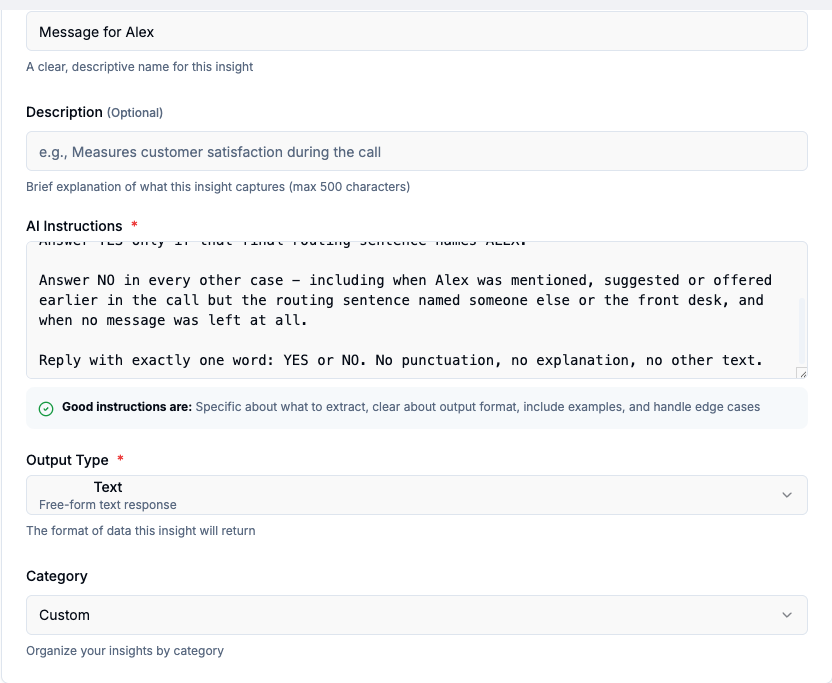
Keep Output Type on Text and end the instructions with the exact-format line shown below. This shape is the most reliable one we have measured:
Read the transcript. Answer YES only if <the specific thing you care about>.

Answer NO in every other case, including <the cases people most often confuse with it>.

Reply with exactly one word: YES or NO. No punctuation, no explanation, no other text.
Emergency Level returning routine / urgent / emergency is a reporting insight, and its wording
drifts. Is This An Emergency returning YES or NO is a routing insight, and it does not. Use one
Yes/No insight per outcome you want to route.
Step 2 — Attach the insight to the assistant
AI Assistants → your assistant → Insights tab → Add More Insights → find it under Your Custom Insights → Add.
An insight that isn't attached never runs, so no rule using it can ever fire.
Step 3 — Add the rule
In Conditional Notifications, choose Add rule, then set:
- Channel — Email, Text (SMS), or Webhook
- Recipient — the email address or mobile number. Webhook rules post to the group's saved URL
- Insight — the one you just attached
- Is — Yes (or No)
Then Save. Rules take effect on the next call.
Worked example: routing messages to the right person
A salon rents chairs to independent stylists. Each stylist wants only their own messages.
One insight per person, all identical but for the name:
Message for Jamie — Read the transcript. The assistant ends every message-taking call with one routing sentence naming the single person who will receive the message, in the form "I'll pass this to <name>." Answer YES only if that final routing sentence names JAMIE. Answer NO in every other case — including when Jamie was mentioned, suggested or offered earlier in the call but the routing sentence named someone else or the front desk, and when no message was left at all. Reply with exactly one word: YES or NO. No punctuation, no explanation, no other text.
Plus one catch-all so nothing is dropped:
Message for the Front Desk — ...Answer YES if the message was for the business generally, for the front desk, for the owner, or for someone not on the team — and also when a message was clearly left but the caller never settled on who it was for...
One rule per person:
| Channel | Recipient | When | Is |
|---|---|---|---|
| Text (SMS) | Jamie's mobile | Message for Jamie | Yes |
| Text (SMS) | Priya's mobile | Message for Priya | Yes |
| Text (SMS) | the front desk mobile | Message for the Front Desk | Yes |
Make the assistant's wording routable
The insights read the transcript, so the transcript has to be unambiguous. In your assistant's instructions, require one routing sentence, said once, at the end:
The very last thing you say before your goodbye MUST be one plain sentence naming
the ONE person who is getting this message:

  "I'll pass this to Jamie."
  "I'll pass this to the front desk."

- Say it once. Never name two destinations.
- Say it last, after everything else is settled.
- Say it even when it is the front desk.
If the assistant offers a name and the caller declines it — "That sounds like Priya?" / "No, that wasn't her" — a transcript that then lands at the front desk contains both. Word your insights to key on the final routing sentence only, and have the assistant go straight to the front desk after a declined suggestion instead of trying a second name.
Adding someone later
Three steps, in this order:
- Add them to the roster in the assistant's instructions
- Create their Yes/No insight and attach it to the assistant
- Add their rule
A name in the instructions with no insight and no rule is a message that reaches nobody — the call still happens and the caller is still told someone will be in touch.
What the notification contains
Text (SMS) — the insight name, the matched result, a one-line summary of the call, and a link to the call record:
Message for Jamie: YES. The caller, Maria, asked about a balayage before her
sister's wedding on the twentieth.
https://voice.vokaai.com/analytics/calls/6f1c9b2a-...
Email — the same, plus the caller's number, the number they dialed, the duration and the time of the call. If you want the caller's number in front of you without opening the call record, add an email rule alongside the text one.
Timing
Notifications are post-call, not live. Insights are evaluated after the caller hangs up, so the alert follows a few seconds later. Half arrive within about 10 seconds and nine in ten within about 30, but a busy moment can push one past a minute. Delivery to a handset then adds the carrier's own few seconds on top.
This is not a transfer. If someone needs to reach a person during the call, use call transfer instead.
Good to know
- One alert per rule per call. A rule cannot text the same person twice for one call, even if the call record is delivered to us more than once.
- Editing rules mid-day. Saving the section rewrites all of its rules. If a call from the last few minutes is still being processed, its alert may send again after a save. Quiet periods are the safer time to edit.
- STOP applies to alerts too. If someone replies STOP to an alert, they stop receiving all texts from your business number, silently. To start again they must reply START.
- Rules can be paused. Use the toggle at the end of a row instead of deleting it.
- A rule is not a record. Alerts are a nudge; the call and its insights always remain in Analytics → AI Insights.
Troubleshooting
No notification arrived
- Check the insight actually returned the value you're matching: Analytics → AI Insights → find the
call. If it returned
NO, the rule was right not to fire. - Check the insight is attached to that assistant — an unattached insight never runs.
- For SMS, check the SMS add-on is active and the business number is verified.
- Give it a couple of minutes. Delivery to a mobile can lag the alert itself.
The insight returned something other than Yes or No
Rules match exactly. If the result came back as a sentence, tighten the instructions with the exact-format line from Step 1 — the "Reply with exactly one word" sentence is what holds it.
Two people were notified for one call
Two rules matched. Re-read your insight wording: the usual cause is one insight counting a name that was merely mentioned rather than the one the message was finally routed to.
Notifications stopped for one person
They most likely replied STOP. Ask them to reply START to the same number.