Setup Check
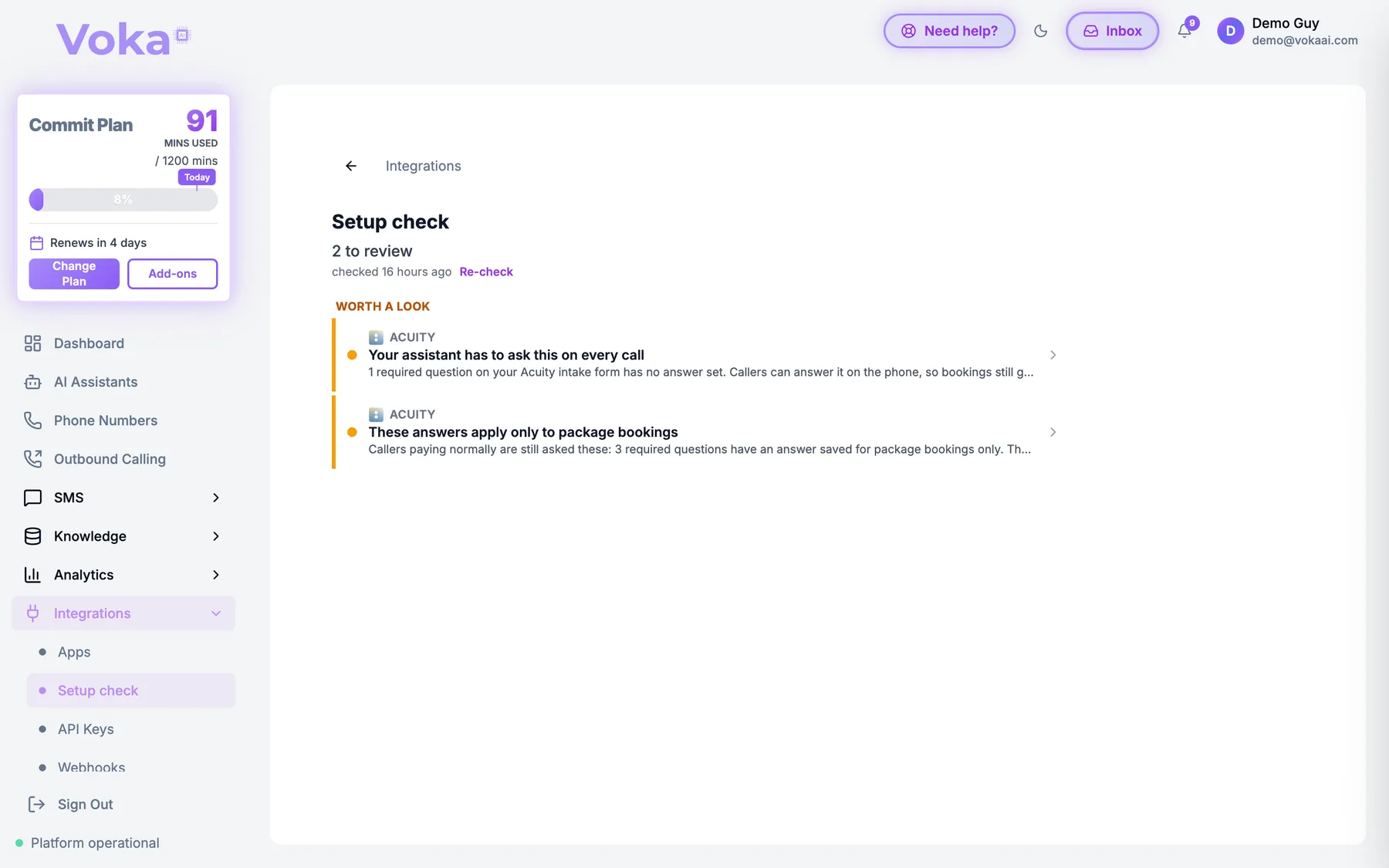
Setup Check looks at the booking systems you've connected to Voka AI and tells you about settings that stop callers from booking or make calls longer than they need to be. Each finding explains what we found, what it means for your callers, and what you can do about it, usually in one click.
You don't have to act on everything it shows. Some findings are must-fix, some are worth a look, and you can tell it to stop flagging anything you've decided to keep.
Where to Find It
- Integrations → Setup check in the sidebar
- The "N to review" bar at the top of Integrations → Apps (click Open Setup check)
- The dashboard banner "Something is stopping callers from booking" (click Review). It only appears when something blocks bookings.
It checks the integrations you've connected: Square Appointments, Acuity Scheduling, Calendly and Google Calendar. If you haven't connected any of them, there's nothing to check. If a connection itself is broken (for example, Google Calendar is disconnected), Setup Check tells you so. Reconnect it under Integrations → Apps.
The Three Sections
| Section | What it means | What to do |
|---|---|---|
| Needs action | Something is stopping callers from booking. Your assistant can still answer the call, but it can't complete the booking. | Fix it. These are the ones that cost you appointments. |
| Worth a look | Bookings still go through, but your assistant has to ask extra questions or take longer than it needs to. | Fix it if you can, or choose the keep option if it's right for your business. |
| Kept as is | Findings you've told us you're happy with. We stop flagging them. | Nothing. You can change your mind here any time. |
When everything is fine, you'll see "Your booking setup looks good."
Opening a Finding
Click any finding to open it. Each one shows:
- What we found: the exact setting, form or question involved
- What would you like to do? The choices that apply to that finding
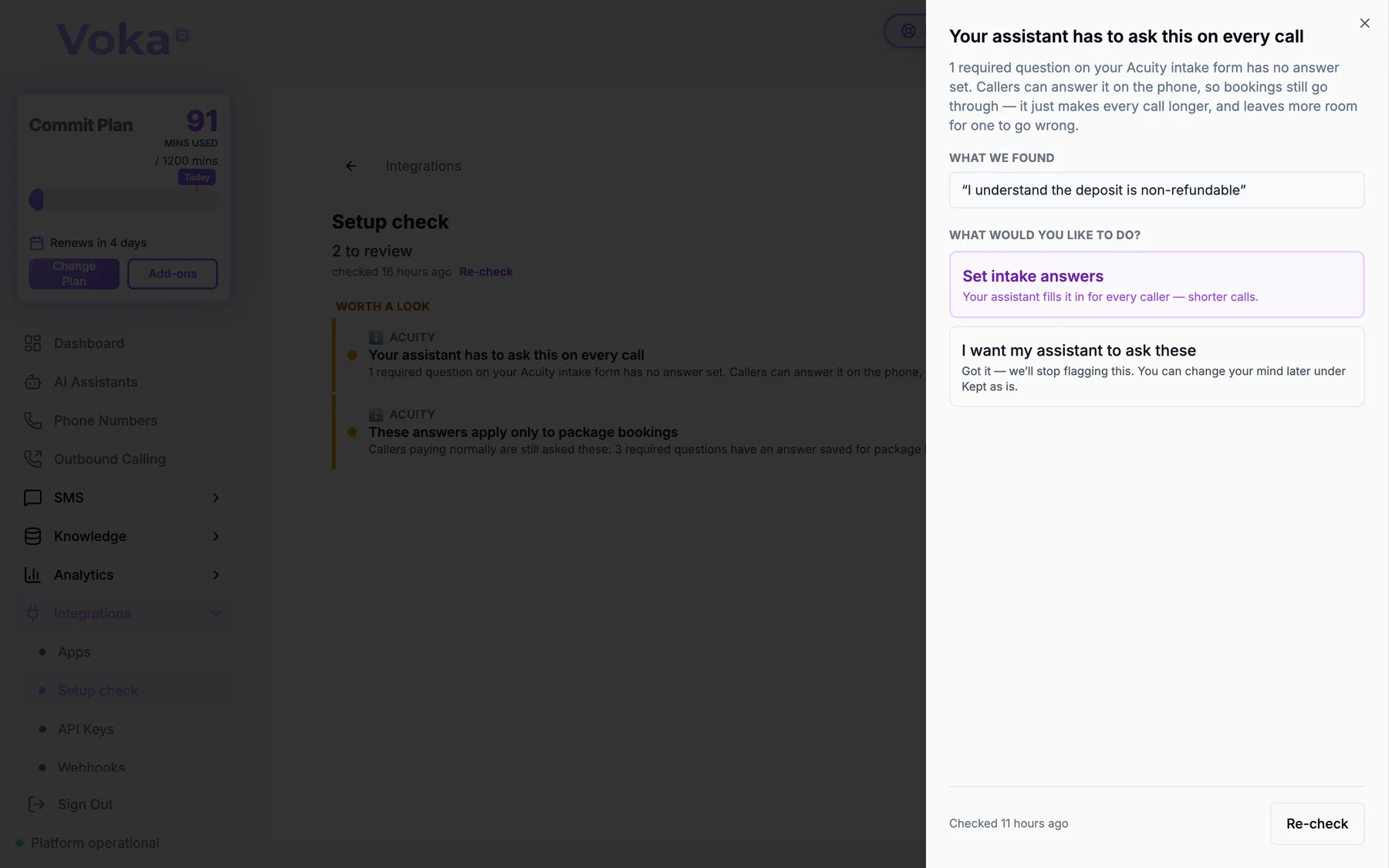
Your choices depend on the finding:
- Fix it. For example, Set intake answers saves an answer once so your assistant stops asking callers for it. Some fixes open Square or Acuity in a new tab to change a setting there, and bring you straight back.
- Keep it the way it is. Each "Worth a look" finding has a keep option worded for that finding, for example I want my assistant to ask these. We'll stop flagging it and move it to Kept as is.
- Remind me later. For "Needs action" findings. Hides the alert for 3 days. Callers still can't book until it's fixed.
- Re-check. Looks again right away, for example after you change something in Square or Acuity.
Click Re-check on the finding (or Check now for Google Calendar and Calendly) instead of waiting. Voka also re-checks connected systems regularly on its own.
Common Findings
Needs action (blocks bookings)
| Finding | What it means | How to fix it |
|---|---|---|
| Online booking is switched off in Square | Square won't accept bookings from your assistant. | Turn on Appointments in your Square dashboard, then come back and click Re-check (or reconnect). |
| No bookable services found in Square | There's nothing in your Square catalog your assistant can book. | Add at least one bookable service to your Square catalog, then click Re-check (or reconnect). |
| No team members are bookable | No staff member can take bookings in Square. | In Square, mark at least one team member as bookable and assign them to your services. |
| No appointment types found in Acuity | Acuity has no appointment types your assistant can offer. | Add at least one appointment type in Acuity, then click Re-check (or reconnect). |
| No calendars are available for booking | Your Acuity appointment types aren't attached to a calendar. | Add a calendar in Acuity and assign it to your appointment types. |
| A caller can never answer these on the phone | A required Acuity intake question asks for a file upload, which nobody can do on a call, so those bookings reach a dead end. | Set a stored answer for that question. That's the only thing that makes those services bookable by phone. |
Worth a look (bookings work, calls take longer)
| Finding | What it means | How to fix it |
|---|---|---|
| Your assistant has to ask this on every call | A required intake question has no saved answer, so every caller is asked it. | Set intake answers saves an answer once, and your assistant fills it in for every caller. |
| These answers apply only to package bookings | You saved answers, but only for package bookings, so callers paying normally are still asked. | Give the question an answer that applies to every booking, not just packages. |
| Two of your forms ask callers the same question | Two required questions are worded the same on different forms but are separate agreements, so callers hear them one at a time and can't tell them apart. | Set an answer for each (for a waiver you collect at the front desk, for example "Consent collected in person"), or reword them in Acuity so each says what it's for. |
| Long service list with nothing to group it by | Callers hear a few examples out of many services and get stuck if they don't know your exact service name. | Group your services into categories, so callers hear a short list of areas instead of every service name. |
| A location isn't linked to Square or Acuity | A caller who names that branch may be asked which location they mean a second time. | Click Link locations and match each location to its Square or Acuity location. |
| Your Square plan doesn't let apps book | Your Square plan doesn't allow phone booking through apps. Callers can still get your booking page by text. | Upgrade your Square plan if you want phone booking, or choose the keep option. |
| Only one team member is bookable | All bookings go to one person. | Check that this person is assigned to every service callers should be able to book. Fine for a solo business. |
"Worth a look" findings are suggestions, not errors. If a question really should be asked on every call, or you really are a one-person business, choose its keep option.